


Juggling Chaos

  • Juggling ChaosJuggling Chaos
  • Articles
    • AI
    • CMS
      • WordPress
      • Umbraco
      • SilverStripe
      • ProcessWire
      • MODX
      • Microweber
      • Joomla
      • Grav
      • Ghost
      • Drupal
    • Cybersecurity
    • Digital Data
    • Digital Marketing
    • Email Marketing
    • Influencers
    • Pay-Per-Click
    • User Centralized Marketing
    • SEO
    • Social Media
      • Facebook
      • Instagram
      • LinkedIn
      • Pinterest
      • SnapChat
      • TikTok
      • Twitter
      • YouTube
    • Text Message Marketing
  • Resume
    • Certifications
    • Portfolio PDF
  • Privacy Policy
    • Opt-out preferences
    • Cookie Policy
  • Contact Us
  • Videos
  • Free SEO Tools
  • Privacy Policies Watch
  • Search

Family Center

Snapchat Family Center: What Parents Can See

Snapchat Family Center: What Parents Can See

September 23, 2026Kids Online Safety, SnapChatFamily Center, kids privacy, parental controls, SnapchatLeave a comment

Snapchat Family Center lets a parent see who a teen is friends with and who they have been talking to. It does not let you read the chats. Snapchat describes that on purpose: parents usually know who their teen is with, and they do not listen in on the conversation. The teen has to accept an invite before any of it turns on.

This is a parent guide, with a note for grandparents and for adult children helping an older relative who just installed Snapchat. The steps below were checked on Snapchat’s help pages on September 23, 2026. If a button name differs, use those pages. Do not follow a “secret Snapchat parent app” from an ad.

What you can see

Snapchat’s Family Center article says a parent can:

  • See who the teen has chatted with recently, without reading the messages.
  • See who is in active group chats.
  • See current friends and new friends.
  • Limit sensitive content, and stop My AI from replying to the teen.
  • Request the teen’s location so they appear on your Snap Map.
  • Set Place Alerts for arrivals and departures at places such as home or school.
  • See a few privacy settings, including birthdate, whether they have a Public Profile, and location sharing.
  • Report an account to Snapchat’s safety team.

In the app, Recent Conversations starts with the five most recent chats. View All Recents opens the last 7 days. New Friends highlights people added in the last 7 days. View All Friends opens the full list. Location appears on the map only if the teen is sharing it with you.

That list is the job. A new friend every day, or a chat with an account that has no real name, is the moment to talk. The missing message text is not a bug. If you need the words, ask the teen to open the chat with you in the room, or report the account.

Add your teen, then send the invite

Snapchat’s “add my teen” article gives this order:

  1. Install Snapchat from the App Store or Google Play and update it. Create your own account. Use your real age. A parent account pretending to be a teen will not unlock Family Center the way you hope, and it puts you in the wrong product.
  2. Add the teen as a friend. Search their username. They have to accept a normal friend request before Family Center can find them.
  3. Open Family Center and go through setup.
  4. On the invitation screen, select the teen from recent friends or search for them, then tap Send Invitation.

The invite arrives as a Chat from you. Snapchat says that chat disappears the way other chats do, either right after it is viewed or 24 hours later, depending on their settings. Tell them in person to open it and accept. A vanished invite is the most common “it did not work” report, and it is not a glitch.

You can open Family Center in three ways Snapchat lists:

  • On the camera screen, tap your Bitmoji or Story icon, scroll to Family Center under My Friends, and tap it.
  • In My Account, tap the gear, scroll to App & Privacy, and tap Family Center.
  • Type “family,” “safety,” or “parent” in the search bar at the top of the app.

Settings to check the day they accept

  1. Look at the birthdate on the privacy settings Family Center shows you. If it is wrong, fix it with Snapchat’s age process. Do not leave a 12-year-old listed as 17 so they can keep a Public Profile.
  2. Turn on content controls that limit sensitive content. Snapchat’s help section includes a separate article, “How do I restrict content for my teen in Family Center?” Use that if the switch is not where you expect. This guide will not guess the extra taps.
  3. Stop My AI from replying if you do not want a chatbot in the conversation. Snapchat lists this as a Family Center control. The how-to article is “How do I limit my teen’s access to My AI?”
  4. Decide about location together. Requesting location is a request. They can decline. If they accept, they show on your Snap Map, and Place Alerts can ping you at home or school. Read what location sharing shows before you treat Snap Map as the only dot that matters. Apple and Google have their own dots.
  5. If they have a Public Profile, ask why. A public Story is a different audience than a friend list. Family Center lets you see that setting. Use the conversation, not a surprise lockdown, if they are old enough to have been given the account.

Snapchat also says that even with content controls, a teen might still see something sensitive in Stories or Spotlight. Their help center has a page for that case. If it happens, report it and tell the teen to skip the Story. Do not decide the control “failed” and install a second app from an advertisement.

What to skip

  • Do not log into their account to read Snaps. Those messages are designed to disappear, and using their password breaks the boundary Family Center was built to keep.
  • Do not buy a “Snapchat spy” app. This site will not explain how those work. Use Family Center or do not use Snapchat.
  • Do not turn on location and Place Alerts without saying so. A teen who finds a hidden alert will turn location off everywhere, including the family map you actually wanted.
  • Do not add a child who is under Snapchat’s minimum age by changing their birthday. That is how safety limits get removed.

Checklist

  • You have your own updated Snapchat account and you are friends with the teen.
  • They accepted the Family Center invite, and you reminded them in person because the chat disappears.
  • You can see friends and recent conversations, and you understand you cannot read the text.
  • Sensitive content limits are on, and My AI is off unless you chose otherwise.
  • Location was requested out loud, not as a surprise.
  • The birthdate and Public Profile setting have been looked at once.

What this means for you

A parent should open New Friends once a week. Five new names you have heard of is different from one new name with no mutual friends and a chat at midnight. Ask about the second one. You still do not need the message text to ask.

A grandparent who is the Family Center adult needs to be the person the teen actually talks to. If the teen will only accept a parent, do not keep a half-finished invite on the grandparent’s phone.

An adult child helping an older parent on Snapchat should turn off a Public Profile, skip unknown friend requests, and ignore a Snap that says their account will be deleted unless they tap a link. That is a phishing pattern, not a Snapchat bill. The same “do not call the number on the screen” rule is in how to spot a fake tech-support pop-up.

Snapchat does not limit the whole phone. Bedtime still belongs in Screen Time or Family Link.

FAQ

Can I read my teen’s Snaps?

No. Snapchat says Family Center shows who they talked to, not the conversation. That is the design, not a missing update.

The invite disappeared. Did they reject it?

Not necessarily. Snapchat says the invitation chat deletes immediately or within 24 hours after it is viewed, like other chats. Ask them to look again, and send a new invite if it is gone.

Why can I not find Family Center?

Update the app. Then use the camera-screen Bitmoji path, Settings under App & Privacy, or the in-app search for “family.” You also have to be friends with the teen before the invite step will list them.

Does content control block everything sensitive?

Snapchat’s own help section says a teen can still see sensitive or suggestive content in Stories and Spotlight after controls are on. Report it. Do not assume a third-party app will do a cleaner job.

Sources

  • Snapchat Support, “What is Family Center?” help.snapchat.com What is Family Center, accessed September 23, 2026.
  • Snapchat Support, “How do I add my teen to Family Center?” help.snapchat.com add a teen, accessed September 23, 2026.
  • Snapchat Support, “How do I find Family Center in the Snapchat app?” help.snapchat.com find Family Center, accessed September 23, 2026.

Photo: a child using a phone, by Ewa.97, CC BY-SA 4.0, via Wikimedia Commons.

This is not legal advice. Snapchat’s age rules differ by country. If a switch is missing, use the help article for that switch instead of a copied tap list.

Update this guide if Snapchat changes what Family Center shows, how long the invite chat lasts, or whether location is a request or a default.
Discord Family Center: A Parent’s Setup Guide

Discord Family Center: A Parent’s Setup Guide

September 23, 2026Cybersecurity, Kids Online SafetyDiscord, Family Center, kids privacy, parental controlsLeave a comment

Discord Family Center shows a parent the outline of a teen’s Discord use: new friends, servers they joined, who they messaged or called, and how long they were in voice. It does not show the messages. Some safety settings, once you are linked, can only be changed by the parent. The teen has to accept the link first.

This guide is for parents and guardians. It is not a monitoring product you hide on their phone. Discord’s own description, checked September 23, 2026, says the tool is meant to support a conversation and to respect a teen’s privacy. If a menu has moved, use Discord’s help article rather than a screenshot from last year.

What you will see, and what you will not

After the teen accepts, Family Center can show the last 7 days of activity. Discord says the dashboard and the weekly email only include activity after the connection is accepted. There is no backfill of last month.

Discord lists this activity:

  • New friends, with display names and avatars.
  • Users they messaged or called in direct or group messages. Not the text of those messages. Discord says this twice, and it is the rule to remember.
  • Total call minutes in voice and video, including direct messages, group messages, and voice channels in servers.
  • The top five users and servers that week, by message and call frequency.
  • New servers they joined or created, including the server name, icon, and member count.
  • Servers where they spoke in a voice channel or sent a message.
  • Purchases in the last 7 days, including Shop items and Nitro. A Nitro charge shows in the week it is billed.
  • Gifts received, claimed or not, including what it was, who sent it, and when. A gift sent as a link shows up only after the teen claims it.

You also get a weekly email summary at the address you used to sign up. Read that email. It is the habit that makes the tool useful. Opening the app only after a scare means you missed the week the new server appeared.

Connect on a phone, even if you use Discord on a computer

Discord says you can start from the browser, but the connection itself has to be finished in the mobile app. Both of you need Discord accounts. A parent account should use the parent’s real age.

On a phone, Discord’s parent article gives this path:

  1. Tap your profile icon to open User Settings.
  2. Open Family Center.
  3. Turn on the Family Center tab if it is not already on.
  4. Open My Family and scan the teen’s QR code. The teen finds that code in their Family Center tab under Connect with Guardian, or the label Discord shows for connecting with a parent. Ask them to open it. Do not go looking through their phone for the code while they are at school.
  5. The teen accepts the request. Until they do, you see nothing.

Discord’s teen article says a teen can connect up to three parents or guardians. One parent can set this up and add the other later if the teen agrees. Do not make a second secret Discord account to get around a no.

Settings you can hold, once you are linked

Discord says a linked teen cannot change these settings on their own. Talk about them before you lock them. A surprise lock feels like a punishment.

  • Sensitive content filters. Flagged media can be blurred, blocked, or shown. In the UK, Australia, and Brazil, Discord says a guardian can only choose blur or block, not show. Guardians in regions with extra rules must be age-assured adults, 18 or older, before they change the message-request setting. Follow the regional article Discord links. Do not skip the age check.
  • Friend requests. Everyone, friends of friends, or server members.
  • Server direct messages. Whether server members can message your teen.
  • Message requests. On by default for teens. When it is on, messages from people who are not friends go to a separate Message Requests folder instead of the main inbox. Leave this on.
  • Data and privacy. Whether Discord may use their data to improve Discord, personalize the app, or personalize sponsored content, including with third-party data. Turn the ad personalization switches off unless the teen asks for them and you agree.

For a younger teen, a reasonable first week is: sensitive content blocked or blurred, friend requests from friends of friends or server members only, server DMs off, message requests on. You can loosen a switch after you have seen a calm week in the activity tab.

Spending and downtime

Discord says a guardian can set a monthly spending cap, including a cap of $0. Once the cap is hit, the teen cannot make more purchases until the next month. Read the exception. Discord says the cap does not include subscriptions such as Nitro, Server Boosts, Server Subscriptions, and Premium App Subscriptions. Those can still bill. The activity tab is where you see Nitro, in the week it is charged. If you do not want Nitro, do not leave a card on the account and hope the cap covers it. Remove the card, or watch the weekly email.

The same Family Center area includes screen downtime. Set it to match the household bedtime. Discord downtime does not lock the whole phone. Pair it with Screen Time or Family Link if the phone itself needs a stop time.

What to skip

  • Do not ask the teen for their password so you can read servers “just once.” Family Center exists so you do not have to do that.
  • Do not install a keylogger or a hidden screen recorder. That is not a parent setting, and this site will not explain how.
  • Do not assume a quiet activity tab means they are not on Discord. It only shows activity after they accepted, and only what Discord includes.
  • Do not join a random “parent safety” server that asks you to download a desktop tool. Use Discord’s own Family Center.

Checklist

  • You and your teen each have a Discord account with real ages.
  • The link was finished on a phone, and the teen accepted it.
  • You know the activity feed starts today, not last month.
  • Sensitive content is blur or block.
  • Message requests stay on. Server DMs are off for a younger teen.
  • Ad personalization is off unless you chose otherwise.
  • The spending cap is set, and you know Nitro is outside that cap.
  • The weekly email is not going to a spam folder.

What this means for you

A parent should treat the weekly email like a permission slip, not a surveillance log. New server, new friend, a gift from a name you do not know: those are the three things worth a conversation. The absence of message text is intentional. If you need the words, ask the teen to show you, or report the account to Discord from Family Center’s report tools.

A grandparent who plays games with a teen does not need to be the Family Center parent unless they are the adult responsible for the account. Too many adults with the lock, and no one reads the email.

An adult child helping an older parent who just joined Discord should turn off personalized ads, leave message requests on, and tell them not to click a “free Nitro” link. That link is a common steal-your-login trick. If money already moved, treat it like any other payment scam and contact the bank. Do not call a number that arrived in the Discord message.

FAQ

Will I see what my teen typed?

No. Discord says you see who they messaged or called, not the messages. The activity summary is built that way on purpose.

Why is the activity tab empty?

Discord says it only includes activity after the teen accepts the connection. A link that is still pending shows nothing. Also check that you are looking at the last 7 days, not an older week.

Can my teen turn the safety settings back?

Discord says that if Family Center is linked, the teen cannot change the sensitive-content, friend-request, server-DM, message-request, and data settings on their own. They can still remove the Family Center connection. You should get a sign that the link is gone. If the weekly email stops, check the link before you assume they had a quiet week.

Does the spending cap stop Nitro?

No. Discord says the monthly cap does not include Nitro and several other subscriptions. Those charges still show in the 7-day purchase summary, in the week they are billed.

Sources

  • Discord Support, “Family Center for Parents and Guardians,” support.discord.com Family Center for parents, accessed September 23, 2026.
  • Discord Support, “What is Family Center?” support.discord.com What is Family Center, accessed September 23, 2026.
  • Discord Support, “Family Center for Teens,” support.discord.com Family Center for teens, accessed September 23, 2026.

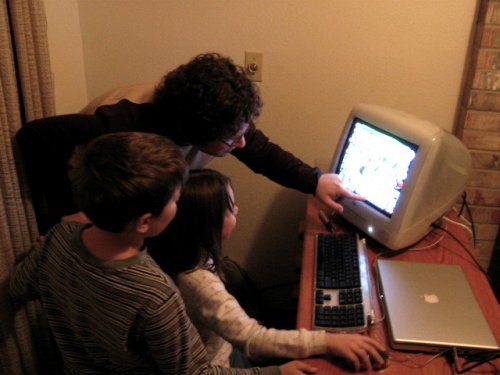
Photo: children at a computer, by jennie, CC BY 3.0, via Wikimedia Commons.

This is not legal advice. Discord’s age-assurance rules differ by country. If a switch is missing, read the regional note on Discord’s help page before you assume the setting failed.

Update this guide if Discord changes what the activity feed includes, the Nitro exception on the spending cap, or the requirement to finish linking on a phone.

Latest Posts

  • Google Privacy Policy Review
    Google Privacy Policy ReviewSeptember 23, 2026
  • Amazon Privacy Policy Review
    Amazon Privacy Policy ReviewSeptember 23, 2026
  • Microsoft Privacy Policy Review
    Microsoft Privacy Policy ReviewSeptember 23, 2026
  • Meta Privacy Policy Review
    Meta Privacy Policy ReviewSeptember 23, 2026
  • TikTok Privacy Policy Review
    TikTok Privacy Policy ReviewSeptember 23, 2026
  • Articles
    • AI
    • CMS
      • WordPress
      • Umbraco
      • SilverStripe
      • ProcessWire
      • MODX
      • Microweber
      • Joomla
      • Grav
      • Ghost
      • Drupal
    • Cybersecurity
    • Digital Data
    • Digital Marketing
    • Email Marketing
    • Influencers
    • Pay-Per-Click
    • User Centralized Marketing
    • SEO
    • Social Media
      • Facebook
      • Instagram
      • LinkedIn
      • Pinterest
      • SnapChat
      • TikTok
      • Twitter
      • YouTube
    • Text Message Marketing
  • Resume
    • Certifications
    • Portfolio PDF
  • Privacy Policy
    • Opt-out preferences
    • Cookie Policy
  • Contact Us
  • Videos
  • Free SEO Tools
  • Privacy Policies Watch
DISCLAIMER
THIS WEBSITE IS INTENDED FOR INFORMATIONAL PURPOSES ONLY. NO PRODUCT, SITE, SERVICE, OR COMPANY IS ENDORESED BY JUGGLING CHAOS OR IT'S AUTHORS. ADS DO NOT CONSTITUTE ENDORSEMENT.