

YouTube and YouTube Kids are not the same app. YouTube Kids is a separate, smaller library. A supervised YouTube account is the main YouTube app with a content level a parent picks. Restricted Mode is a filter on regular YouTube, and it is weaker than either of those. Most families need one of the first two, not a normal login with the sound turned down.
This guide is for parents and grandparents. Steps were checked on Google’s family help pages on September 23, 2026. Availability depends on country. If a control is missing, the feature may not be offered where you live. Do not invent a workaround. Use YouTube Kids, or watch together.
Pick one of three setups
Google describes two supervised options when you manage a child’s Google Account with Family Link, plus Restricted Mode for older kids.
- YouTube Kids. A separate app and website with a smaller set of videos. You choose a content level, and you can turn search off. This is the right start for a young child.
- Supervised kid account on YouTube. For a child under 13, or the applicable age in your country, who is ready to leave YouTube Kids. You pick a content setting. Google’s Family Link page lists three: Older kids, Teens, and Older teens.
- Restricted Mode. An optional filter on regular YouTube. Google says parents of teens 13 or older who have added supervision can use it to screen potentially mature content. It is also what schools and libraries often turn on. It is not a kids’ product.
Google’s FAQ draws the line clearly. Restricted Mode tries to screen adult content. A supervised child account is a different, tighter experience for a child under 13. Do not tell yourself they are the same.
Family Link does not supervise an iPhone as a device. YouTube controls still depend on whose Google Account is signed in. If a child watches YouTube on an iPad while signed into your account, they see your recommendations and your history. Sign them into their own supervised account, or use YouTube Kids with a profile you created. The device lock for an iPhone or iPad is Screen Time. The account lock for Android is Family Link.
Set up YouTube Kids
Google says you have to set up YouTube Kids before the child can use it. In the Family Link app, as of September 23, 2026:
- Open Family Link and select the child.
- Tap Controls, then YouTube.
- Under YouTube Kids settings, set the content level, turn Search on or off, or remove access.
You can reach a similar screen in the YouTube app: profile picture, Settings, Family Center, then the child. Search is the setting most parents miss. With search on, a child can hunt for videos outside the rows you expected. Turn search off until you have watched how they use the app.
YouTube Kids is not magic. A video made for children can still be loud, creepy, or a toy ad. Block a video when that happens. Google notes that a block or unblock in YouTube Kids also applies to the child’s supervised YouTube account, if they have one.
Set up a supervised YouTube account
Google says you can set up a supervised experience for a child under 13, or the applicable age where you live. If the child is over that age and chooses to manage their own account, you will not be able to supervise YouTube with these controls.
In Family Link:
- Open Family Link and select the child.
- Tap Controls, then YouTube, or YouTube Family Center.
- Under YouTube settings, tap Edit.
- Choose the content setting and tap Select.
In the YouTube app: profile picture, Settings, Family Center, the child, What they can watch, Content setting, then Select.
General settings in the same Family Link screen can pause watch history, pause search history, turn off autoplay, clear history, and unblock videos. Google says you can only block or unblock videos if YouTube Kids is set up, and the block list is shared with the supervised account.
To review watch history, Google says you must be on the child’s device. Family Link does not hand you a full viewing diary on your own phone. Sit with the child and look together.
A warning before you supervise an existing account
If you add supervision to an existing Google Account for a child under 13, or the applicable age, Google says it deletes subscriptions and this content on the account:
- YouTube videos, chats, and comments
- Live chats, posts, playlists, and stories
- Purchased and rented YouTube videos
Google recommends that the child download their data first. Do not tap through that screen on a shared family account. You can wipe purchases and uploads. Create a new child account if the current login is actually yours.
What changes at 13
Google says that once a child turns 13, or the applicable age in your country, they get YouTube without that supervised kid experience. You can still turn Restricted Mode on or off from Family Link if supervision remains: open Family Link, select Controls, then YouTube, and switch Restricted Mode.
Restricted Mode is a filter, not a wall. Pair it with a private account habit on other apps, and with a time limit. Sleep mode and app limits belong in Family Link or Screen Time, not in a hope that YouTube will stop itself.
A teen who wants TikTok or Instagram next needs those apps’ own tools. YouTube’s content level does not follow them there. See TikTok Family Pairing and Instagram Teen Accounts.
What to skip
- Do not sign a young child into your YouTube account to “keep it simple.” Your history and recommendations become theirs, and theirs become yours.
- Do not treat Restricted Mode as YouTube Kids. Google describes them as different tools.
- Do not add supervision to an existing under-13 account until you have read the deletion warning and saved anything the family paid for.
- Do not download a “YouTube for kids” app from an ad. Use the YouTube Kids app from the official store, or the setup inside Family Link.
Checklist
- The child has their own Google Account, not yours.
- A young child is on YouTube Kids, with search off until you decide otherwise.
- An older child under the local age cutoff is on a supervised YouTube content level you picked on purpose.
- You know that blocking a video in YouTube Kids also blocks it on the supervised account.
- You did not supervise an existing account without reading the deletion list.
- At 13, you have a plan for Restricted Mode and for time limits, because the kid supervision experience ends.
What this means for you
A parent should pick the strictest option the child can still use for school and the one show they care about. You can loosen a content level later. Starting wide and trying to claw it back is harder, because the child has already seen the rest of the library.
A grandparent’s tablet should not stay signed into the grandparent’s YouTube. Make a YouTube Kids profile before the visit, or let the child watch one show you start yourself and then put the tablet away.
An adult child setting this up for a parent’s household should leave the parent’s own YouTube login alone. The job is a separate kids’ profile, not a lockdown of the grandparent’s account.
FAQ
Is Restricted Mode enough for a 7-year-old?
No. Google describes Restricted Mode as a filter for people who want less mature content on regular YouTube. YouTube Kids or a supervised kid account is the tool for a young child.
Can I see everything my child watched, from my phone?
Not as a full history in Family Link. Google says you review watch history on the child’s device. You can pause watch history and search history from Family Link.
What if YouTube Kids is not in my country?
Google says to check where YouTube Kids and supervised accounts are available. If the control is missing, do not rely on a random third-party app. Watch with the child, or do not leave them signed in alone.
Will this stop autoplay of the next video?
Family Link has a Disable autoplay switch under general YouTube settings. Turn it on. Autoplay is how a short visit becomes a long one.
Sources
- Google For Families Help, “Understand YouTube & YouTube Kids options for your child,” support.google.com/families/answer/10495678, accessed September 23, 2026.
- YouTube Help, “Get started with supervised accounts,” support.google.com/youtube/answer/10314074, accessed September 23, 2026.
- YouTube Help, “FAQ about supervised child accounts,” support.google.com/youtube/answer/10315824, accessed September 23, 2026.
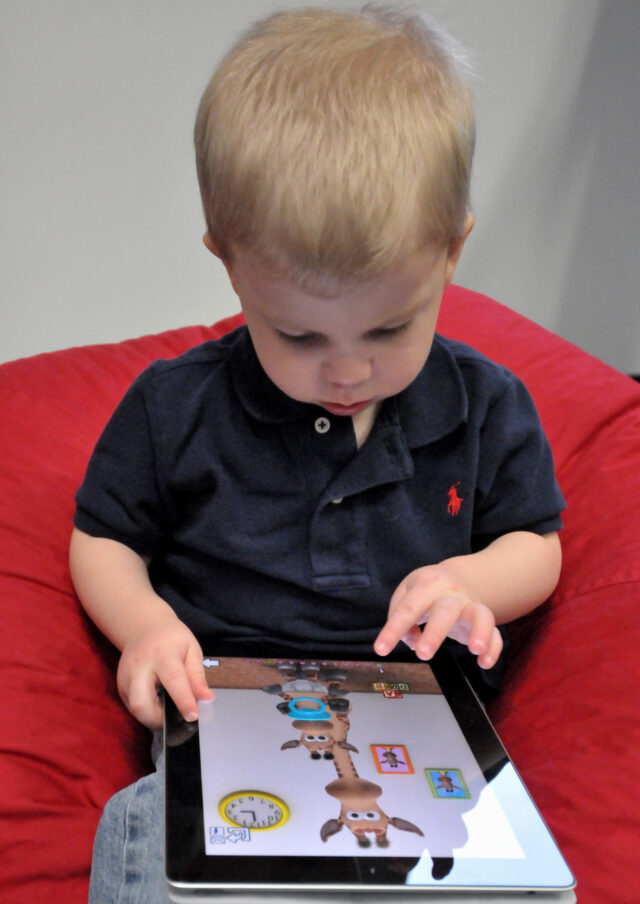
Photo: a child using a tablet, by Walden Kirsch / Intel Free Press, CC BY-SA 2.0, via Wikimedia Commons.
This is not legal advice. The age at which a child can hold their own Google Account differs by country. If a menu has moved, use Google’s help page.
Update this guide if Google renames supervised content levels, changes what is deleted when supervision is added, or changes the age when kid supervision ends.