Authenticator Apps Reviewed: 2FAS, Ente Auth, Google and Microsoft Authenticator
Two-step login, also called two-factor authentication or 2FA, means a site asks for a second proof after your password. The most common second proof is a six-digit code that changes every 30 seconds. An authenticator app makes those codes on your phone. It is safer than getting codes by text message, because a scammer who talks your phone carrier into moving your number can’t redirect an app.
This review is part of our Privacy Toolkit. We compared four free authenticator apps using each developer’s own pages and independent reporting, checked October 6, 2026. We don’t earn a commission from links in this review.
At a glance
- Best for most people: Ente Auth if you want codes on more than one device; 2FAS if you want the simplest app with no account.
- Price: All four apps reviewed here are free.
- Works on: iPhone and Android for all four. Ente Auth also runs on computers. 2FAS has browser extensions.
- Our verdict: Top pick category. Every adult with an email account should use one.
The four apps compared
Ente Auth
Free and open source. You can use it without an account, or create a free account to get end-to-end encrypted backups and sync across phones and computers. “End-to-end encrypted” means the codes are scrambled on your device before they are uploaded, so the company can’t read them. It works offline, imports from other authenticator apps, and adds accounts by QR code or by typing the setup key.
Good for: people who want their codes on a phone and a computer, and who worry about losing a phone.
2FAS Auth
Free, open source, and needs no account. Backups go to your own iCloud or Google Drive, or to an export file you keep. Browser extensions for Chrome, Edge, Firefox, Safari, and others can send a code request to your phone so you don’t have to type it.
Good for: people who want something simple and private, and already use iCloud or Google Drive.
Google Authenticator
Free and familiar. You can use it without signing in, or sign in with a Google Account to sync your codes so a new phone gets them automatically. Earlier versions of that sync were criticized because they were not end-to-end encrypted, so check the app’s current backup settings and protect your Google Account with two-step login.
Good for: Android households that already rely on a Google Account.
Microsoft Authenticator
Free, and the natural choice if you use a work or school Microsoft account, because it can approve sign-ins with a tap. Microsoft removed password storage and autofill from the app in mid-2025 and moved saved passwords to the Edge browser. It still makes codes and stores passkeys.
Good for: people who sign in to Microsoft accounts for work or school.
What about codes in my password manager?
Bitwarden’s paid plans, 1Password, and Apple’s Passwords app can also make these codes. That is convenient. Some people prefer to keep codes in a separate app so the password and the second step are not in one place. Either way is far better than no second step.
Where authenticator apps fall short
- Losing your phone can lock you out if you skipped backups and didn’t save backup codes.
- They can’t stop you from typing a code into a fake site. A phishing page can ask for your code too. Passkeys and hardware security keys resist that kind of trick.
- Setup is account by account. There is no single switch; you turn it on in each account’s security settings.
How to add your first account
- Install one app from the App Store or Google Play. Check that the developer name matches (Ente, 2FAS, Google, or Microsoft).
- Turn on the app’s backup or create its account now, before you add anything.
- Open your email account’s security settings on a computer and choose two-step verification, then “authenticator app.”
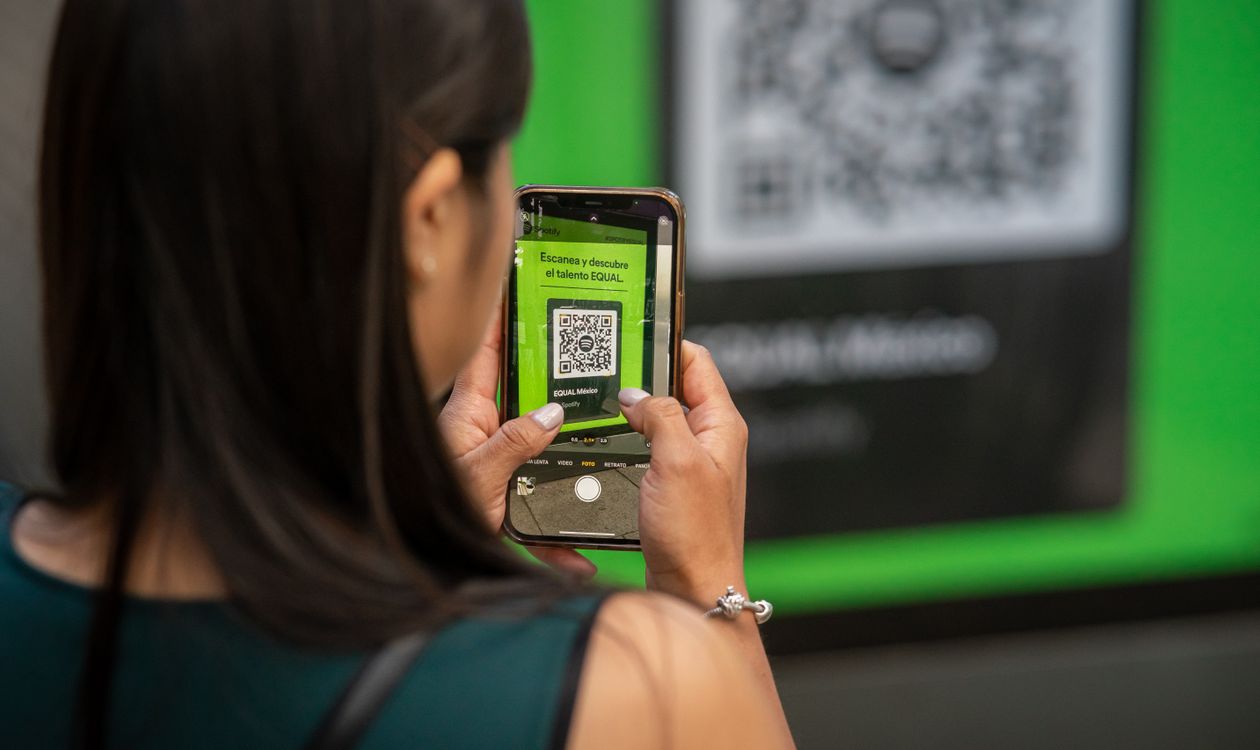
- Scan the QR code with the app, then type the six-digit code it shows to confirm.
- Save the backup codes the site gives you. Print them or write them down and store them with important papers.
- Repeat for your bank, phone carrier, password manager, and social media.
Tips for families and older adults
- No real company will ask you to read a code out loud. If a caller asks for “the code we just sent,” hang up. That is the most common way scammers get around two-step login. See Impersonation Scams.
- For an older relative, start with email only. Add the bank next week.
- A text-message code is still much better than nothing. If an app feels like too much, keep texts on and move to an app later.
Our recommendation
Pick Ente Auth if you want encrypted sync between devices, or 2FAS if you want the simplest app with no account. Turn on backups first, protect your email account, and print the backup codes. If you sign in to Microsoft for work, keep Microsoft Authenticator for that.
FAQ
What happens if I lose my phone?
If you turned on the app’s encrypted backup or sync, install the app on the new phone and restore. If not, use the backup codes each site gave you. That is why you save them.
Should I use more than one authenticator app?
Usually no. One app with a backup is easier to manage. The exception is a work account that requires Microsoft Authenticator.
Are passkeys better than authenticator codes?
Passkeys are stronger, because they can’t be typed into a fake site. Use them where offered, and keep an authenticator app for sites that don’t support them yet.
Sources
- 2FAS, “2FAS Auth,” 2fas.com/auth, accessed October 6, 2026.
- Help Net Security, “Product showcase: Ente Auth encrypts, backs up, and syncs 2FA,” April 16, 2026.
- Redmond Magazine, “Microsoft to Sunset Password Autofill in Authenticator App Starting in June,” May 30, 2025.
- BleepingComputer, “Google will add end-to-end encryption to Google Authenticator,” April 2023.
- Cybersecurity and Infrastructure Security Agency, “Turn On MFA,” cisa.gov/secure-our-world, accessed October 6, 2026.
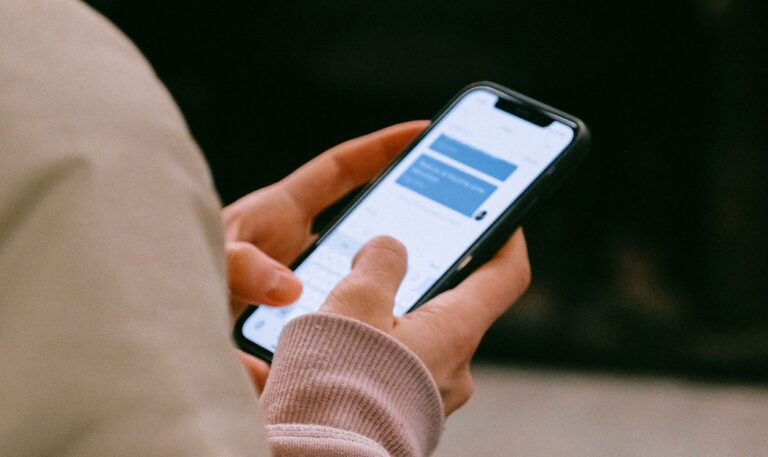
Photo: Julio Lopez via Pexels. Pexels License.
This review is general information, not legal or financial advice. App features change, so check each app’s store listing before you install.