How to Move Your Authenticator App to a New Phone Without Getting Locked Out
An authenticator app makes the six-digit codes you type after your password. The codes live on your phone, not with your phone number. That makes them safer than text messages, but it also means a new phone needs a little planning. If you wipe or trade in the old phone before the codes are on the new one, you can lock yourself out of your email, bank or other important accounts.
This guide walks through moving the four most common authenticator apps, what to do about accounts that won’t move, and a short checklist for before you hand the old phone back. It’s written for anyone upgrading a phone, and for family members helping an older parent switch. The steps were checked against the apps’ own help pages on November 2, 2026. App menus change, so if a button has moved, the app’s help page will have the current name.
The one rule: keep the old phone until the new one works
Don’t reset, trade in or recycle your old phone until you’ve signed in to your most important accounts using codes from the new phone. As long as the old phone still has its codes, a mistake is easy to fix. Once it’s wiped, any code that didn’t move is gone.
Before you start
- Charge both phones and connect them to Wi-Fi.
- Update the authenticator app on the old phone. Google says manual transfers need the latest version of Google Authenticator on the old device.
- Find your backup codes for your email and bank, in case something goes wrong. If you never saved any, see Backup Codes for Two-Step Verification and get a set now, while you can still sign in.
- Make a list of the accounts in the app. A quick photo of the account names (not the codes) on a second device works. You’ll use it to check that everything arrived.
Google Authenticator
There are two ways, depending on whether you signed in to the app with a Google Account.
- If you use it signed in to a Google Account: Google’s help page says that when you sign in to Google Authenticator on a new device with the same Google Account, your codes sync to it automatically. Install the app on the new phone, sign in, and check that the codes appear.
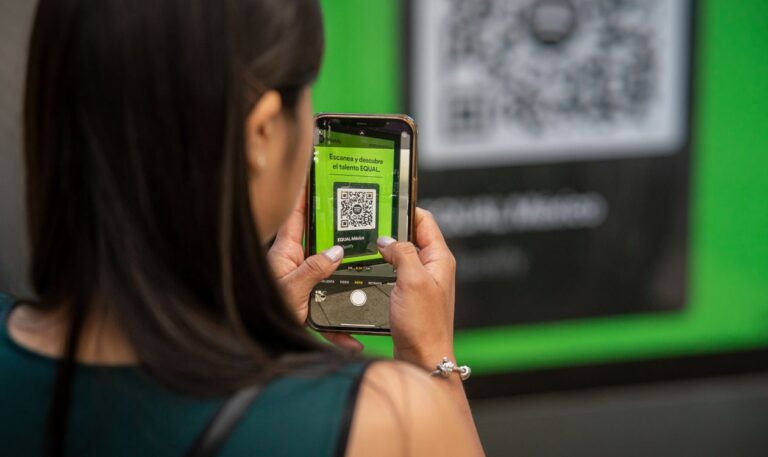
- If you use it without an account: move the codes by QR code. On the old phone, open the app’s menu and choose Transfer codes, then Export codes. Unlock the phone when asked, pick the accounts to move, and tap Next. On the new phone, open the menu, choose Transfer codes, then Import codes, and scan the QR code. Google notes that if you move several accounts, the old phone may show more than one QR code, so scan each one.
Google says synced codes are encrypted in transit and at rest. If you’d rather keep codes only on your phone, you can keep using the app without an account, but then backup codes matter even more.
Microsoft Authenticator
Microsoft Authenticator has its own backup setting, tied to a personal Microsoft account. Turn it on in the app’s settings on the old phone before you switch, then sign in to the same Microsoft account on the new phone and choose to restore. Two things to know:
- As our authenticator app review notes, Microsoft Authenticator backups don’t carry over between iPhone and Android. If you’re switching from one to the other, plan to set up each account again.
- Some accounts, especially work or school accounts, may ask you to sign in again or set up the app again after a restore. If yours does, follow the prompts or ask your workplace’s IT help.
2FAS Auth
2FAS can back up to iCloud on iPhone and to Google Drive on Android, and its help pages cover moving codes between iOS and Android. If backup is on, install 2FAS on the new phone and restore from the same iCloud or Google account. If you’re changing between iPhone and Android, use the app’s export option to make a backup file, then import it on the new phone. Protect that file the way you would a password list, and delete it once the move is done.
Ente Auth
When you use Ente Auth with an account, Ente’s help page says your codes are encrypted on your device before they sync, and its servers store only encrypted copies. Install Ente Auth on the new phone and sign in to the same account, and your codes appear. Keep your Ente recovery key, a 24-word phrase, somewhere you can reach without your phone. If you chose Use without backups, Ente says your codes stay on that one device, so make an encrypted export before you change phones.
Accounts that don’t move
Some apps and websites won’t transfer, or you might find an account missing on the new phone. For each one:
- Sign in to that account on a computer or the old phone, using a code from the old phone.
- Go to the account’s security settings and find the authenticator app or two-step verification section.
- Choose the option to change or add an authenticator app, and scan the new QR code with the new phone.
- Enter a code from the new phone to confirm. Then remove the old phone from that account if it’s still listed.
Before you wipe the old phone
Sign in to your email, your bank and any other account you’d hate to lose, using codes from the new phone. Check that the account list on the new phone matches your list. Then follow our guide to wiping an old phone before you sell or recycle it.
Helping an older parent switch phones
- Do the move together, with both phones on the table, and don’t let the store wipe the old phone during the visit.
- Sign in to their email and bank with the new phone before you leave.
- Print or write down fresh backup codes for their main accounts and keep them with other important papers.
- Remind them that no real company will call and ask them to read out a code.
Checklist
- Authenticator app updated on the old phone.
- Backup codes for email and bank saved on paper.
- Codes moved by sync, restore, export or QR code.
- Every account on the list shows up on the new phone.
- Email and bank tested with codes from the new phone.
- Old phone wiped only after all of the above.
FAQ
Will my codes move automatically when I restore my phone from a backup?
Don’t count on it. Some apps sync through their own account and some don’t, and a general phone backup may not include them. Check the new phone before you wipe the old one.
Can I use the same codes on two phones at once?
Often, yes. Apps that sync through an account, like Google Authenticator signed in to a Google Account or Ente Auth, can show the same codes on more than one device. That’s handy, but any device with your codes needs a screen lock.
I already wiped my old phone. What now?
If the app was syncing or backing up, install it on the new phone and sign in or restore. If not, use the backup codes for each account, or the account’s recovery steps. See Lost Your Phone? How to Get Back Into Your Accounts.
Is it safe to keep codes in my password manager instead?
Some password managers can store authenticator codes. It’s convenient, but it puts your password and second step in one place. Our authenticator app review covers the trade-off.
Related guides
- Authenticator Apps Reviewed: 2FAS, Ente Auth, Google and Microsoft Authenticator
- Backup Codes for Two-Step Verification: What They Are and Where to Keep Them
- Lost Your Phone? How to Get Back Into Accounts That Use Two-Step Verification
- Selling or Recycling an Old Phone or Computer? How to Wipe It First
Sources
- Google Account Help, “Get verification codes with Google Authenticator,” support.google.com, accessed November 2, 2026.
- Google Account Help, “Sign in with backup codes,” support.google.com, accessed November 2, 2026.
- 2FAS, “2FAS Auth Mobile App support,” 2fas.com, accessed November 2, 2026.
- Ente, “Ente Auth FAQ,” ente.io, accessed November 2, 2026.
This is general information, not legal or financial advice. If you think someone got into one of your accounts, change that account’s password from a device you trust and report fraud at ReportFraud.ftc.gov.
Get one safety checklist a month
Juggling Chaos Monthly is free: one 15-minute checklist, one scam warning sign, and our newest guides. Sign up on the newsletter page.
Juggling Chaos will never ask for a password, payment, gift card, or verification code. Guides are general information, not legal or financial advice; see our Disclaimer and Terms and Editorial Policy.
Where this information comes from: This guide is built from official sources, such as U.S. government consumer agencies and the companies’ own help pages and policies, linked in the guide where they are used. I looked it over myself before publishing. I’m not a lawyer or a security professional; like many parents and caregivers, I’m learning as I go, so check the official source before a big decision. How these guides are made.