App Permissions on iPhone: How to Check and Change Them
You can see and change every app permission on your iPhone in one place: Settings > Privacy & Security. Tap a category such as Location Services, Photos, Microphone or Camera, and you will see which apps asked for access. Turn off anything that does not need it. The whole check takes about 10 minutes, and this guide walks you through it.
TL;DR
- Open Settings > Privacy & Security, tap a category, and switch access off for any app that does not need it.
- Apps ask the first time they want your information, so the first tap on a pop-up matters. Deny what the app does not need to work.
- Use App Privacy Report to see how apps have used the access you gave them.
- Add the basics: a passcode, software updates, Find My, and apps only from trusted sources.
- Repeat the check a couple of times a year, and before you hand a phone to a child or an older relative.
Table of Contents
- What app permissions are
- Why it matters for your family
- How to check app permissions on your iPhone
- How to decide if an app needs a permission
- Control tracking across other apps and websites
- See what apps actually did: App Privacy Report
- Other iPhone security settings worth a look
- If you are setting up a child’s phone
- If you are a teen
- If you are helping an older relative
- Our perspective
- Get a checklist you can follow
- FAQ
- Sources
What app permissions are
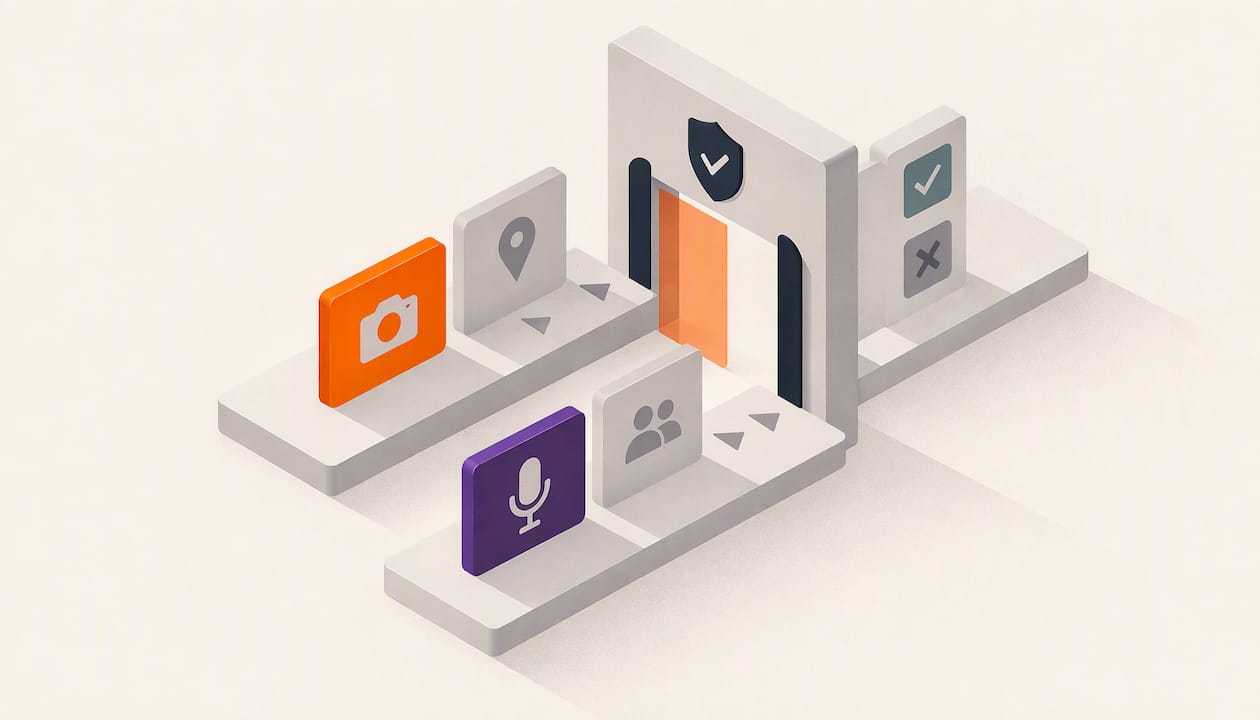
A permission is your yes or no to an app using something on your phone. That might be your location, your contacts, your photos, or the microphone. Apple says apps request permission the first time they want to use information from another app, and you can grant or deny that access.
Apple lists the common categories as location, contacts, calendars, photos, Bluetooth, microphone, camera and health data. Each one is a separate switch, and each one is yours to change at any time.
There is one more thing to know. The Open Web Application Security Project (OWASP) explains that iOS permissions work through three mechanisms: usage description strings, entitlements and runtime prompts. Some permissions are set by the developer and never show up as a pop-up. So the pop-ups and the settings screens are the part you control, and that is where this guide focuses.
Why it matters for your family
Most people tap Allow without reading. It is quick, and the app seems to want it. But the cost is real. The Cybersecurity and Infrastructure Security Agency (CISA) advises that poorly managed app permissions raise the risk that sensitive data, such as health and financial details, gets sold or shared with third parties.
For a family, this adds up fast. A game on a child’s phone does not need contacts. A flashlight app does not need your location. A photo editor on a grandparent’s phone does not need the microphone. Each unneeded permission is one more door left open.
This is also a scam topic. Fake apps and look-alike apps often ask for far more than they need. If you want the bigger picture, our Scams & Fraud hub covers the warning signs.
How to check app permissions on your iPhone
Do these steps now. Grab your phone.
- Open Settings.
- Tap Privacy & Security.
- Tap a category, such as Location Services, Contacts, Photos, Microphone or Camera.
- Read the list of apps that asked for access.
- Switch off access for any app that does not need it.
That is the path Apple gives: Settings > Privacy & Security, then a category, then on or off per app. You can also go the other way around. Scroll down in Settings to a single app and look at everything it can reach.
Tech media recommends doing this on a schedule. The Verge suggests regular audits so earlier choices still match your current privacy needs. We agree. An app you installed three years ago and forgot about may still have access to your location.
Start with these four categories
If you only have five minutes, check these first.
| Category | What an app can see or use | A quick test |
|---|---|---|
| Location Services | Where you are and where you go | Would this app break without knowing where I am? |
| Photos | Pictures and videos in your library | Does it need my photos, or only to save one? |
| Microphone | Sound around you | Does it do calls, voice notes or recording? |
| Camera | Your lens | Does it scan, take photos or video call? |
Contacts is a close fifth. Apps that ask for your whole address book are worth a second look, because that data belongs to your friends and family too.
What to do with Location Services
Location is the one most people regret. Apple notes that you can turn Location Services off entirely in Settings, though that may limit how some Apple and third-party apps work. You do not have to go that far. Go through the list and keep location on only for maps, rideshare, weather and similar apps that clearly need it.
If your family shares locations with each other, read what that actually shows before you decide. We explain it in Family Location Sharing: What It Shows.
How to decide if an app needs a permission
Use one rule: does the app need this to do the job you installed it for? If yes, allow it. If not, deny it.
CISA gives the same advice. Deny access to data or functions that are not required for the app to work, and check the app’s privacy information in its app store.
Here are some everyday examples.
- A map app asks for location. Reasonable. That is its job.
- A calculator asks for contacts. Deny it. There is no reason.
- A video call app asks for camera and microphone. Reasonable.
- A shopping app asks for photos. Think twice. It may only need them if you upload a review picture.
- A free game asks for microphone access. Deny it, unless voice chat is a feature you use.
Denying does not break your phone. If an app truly needs the permission, it will ask again or tell you, and you can switch it back on in Settings.
Check before you download
You can look before you install. On the app’s App Store page, scroll to the App Privacy section and tap See Details. The Verge notes this shows the data an app collects before you download. If a simple app lists a long set of data types, skip it.
The FCC also recommends installing apps only from trusted sources after some research, such as checking reviews and confirming the app store is legitimate. Read reviews for the word “scam” or complaints about spam after install.
Control tracking across other apps and websites
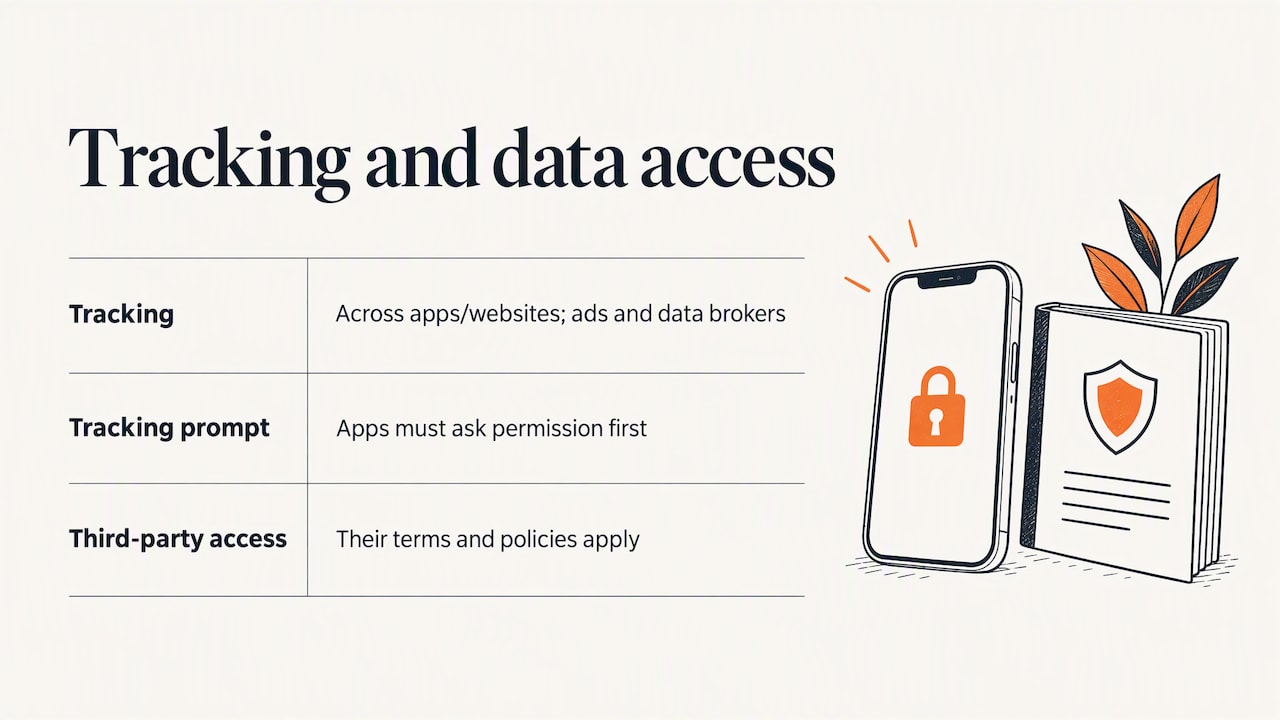
Tracking is different from a camera or location permission. It is about an app following you across other companies’ apps and websites, for advertising or for sharing with data brokers. Apple says apps are required to ask your permission before they track you this way.
When the pop-up appears, you can ask the app not to track. For most apps, that is the right answer. You can review your choices later in the same Privacy & Security area.
A related point: when you allow a third-party app or website to use your data or location, their own terms and privacy policies apply. Apple’s rules do not rewrite what they do with it. That is why we read the privacy policies of big companies for you. Start with our Apple privacy policy review, or browse Privacy Policies Watch.
See what apps actually did: App Privacy Report
Granting a permission is one step. Knowing how it was used is the next.
- Go to Settings > Privacy & Security.
- Tap App Privacy Report.
- Review how apps used the permissions you gave them, and what network activity they had.
Per Apple, App Privacy Report shows how apps have used the permissions you granted and their network activity. You can turn it off or delete its data at any time from the same menu.
What to look for: an app that touched your location or microphone far more often than you would expect, or one you rarely open. If something looks off, go back to its category and switch the permission off. If the app still seems suspicious, delete it.
Other iPhone security settings worth a look
Permissions are one layer. Several readers also ask how to make an iPhone more secure overall. The FCC’s guidance for iOS gives a plain list: use a home-screen PIN or password, keep software updated, avoid modifying security settings, limit public Wi-Fi use, turn on Find My and Activation Lock, and erase and reset the phone before disposal. The page dates from 2012, so some wording is old, but the habits still hold.
In practice, that means:
- Set a passcode that is not 1234 or a birthday.
- Install updates when your iPhone offers them.
- Turn on Find My so a lost phone can be located and locked.
- Skip public Wi-Fi for banking and shopping.
- Erase the phone before you sell it or pass it on.
Safety Check
On iPhones with iOS 16 or later, Safety Check lets you quickly review, update and stop sharing information with individual people and apps. It also includes an Emergency Reset option. It is useful after a breakup, a falling out, or whenever you worry someone has access they should not have. We explain how it compares with Android’s tools in Built-In Phone Privacy Tools.
If you are setting up a child’s phone
Do these before you hand the phone over.
- Go through Privacy & Security together and turn off location for anything that is not needed.
- Check Camera, Microphone and Photos for each app they use.
- Set limits and app approvals with Screen Time.
- Show them what the permission pop-up looks like, and tell them to ask you when unsure.
The Screen Time part has its own steps in our guide to iPhone parental controls. For the broader plan, use Family Safety: Start Here.
If you are a teen
You are the one who taps Allow most. Slow down for one second. Ask: why does this app want this? If a game wants your contacts, say no. Your friends did not agree to be in a stranger’s database. Check Photos and Location first, and look at App Privacy Report once a month.
If you are helping an older relative
Sit next to them rather than taking the phone. Go through the same four categories and explain each choice in one sentence. Remove apps they do not recognize. Then explain how scams push people to install apps or approve pop-ups under pressure. Our guide to spotting a scam and our explainer on the difference between phishing, malware and ransomware are written for exactly this conversation.
Our perspective
We read a lot of privacy policies and talk to a lot of parents. Here is what we keep coming back to.
Permissions are the one privacy control that every iPhone owner can use today, for free, without technical skill. Yet most people never open the screen. That is not laziness. The pop-up shows up at a busy moment, and tapping Allow is the fastest way to get on with your day.
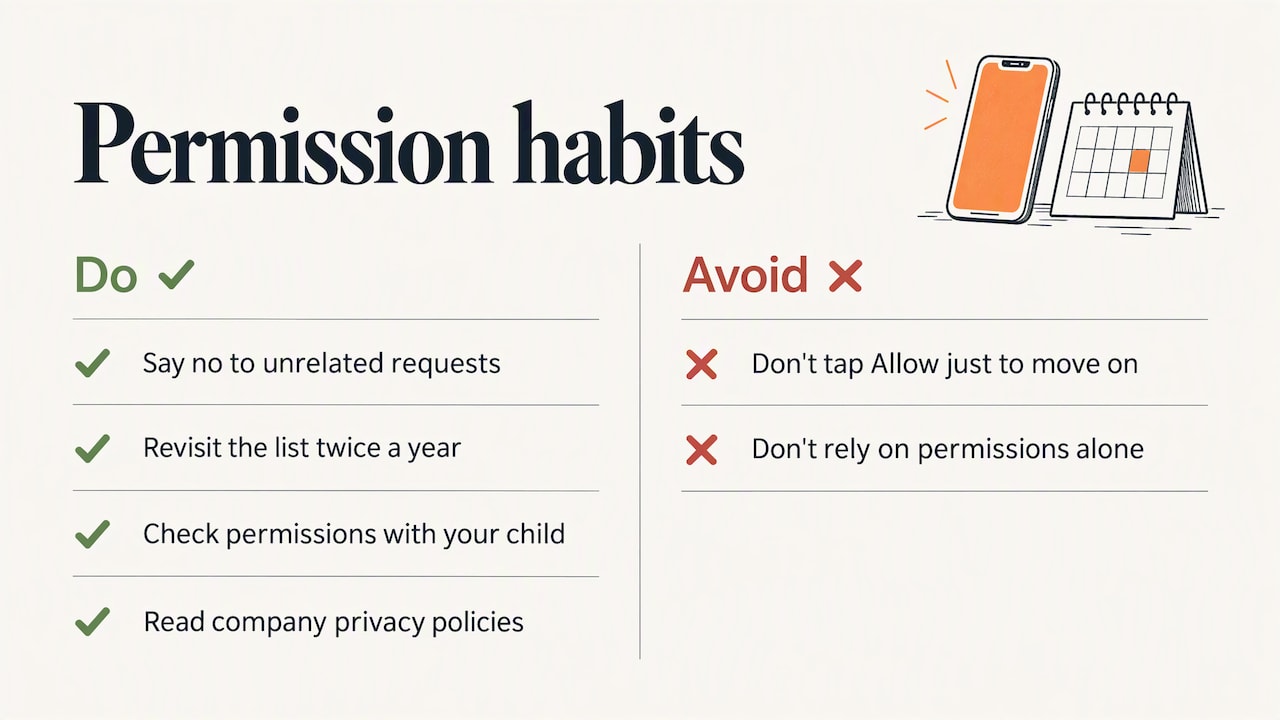
So we suggest turning it into a habit instead of a project. Say no by default when an app asks for something unrelated to its job. Revisit the list twice a year. When you give a child a phone, do the check together, because it teaches judgment better than any rule.
We also think permissions are only part of the story. An app can have no access to your camera and still collect plenty from what you type and tap. That is why we pair this kind of how-to with plain-language policy reviews, so you can judge the company as well as the switch.
Start small. Pick Location Services tonight. It is the quickest win.
— Robert
Get a checklist you can follow
If you want one place to start for your whole household, our Family Safety: Start Here page gathers the checklist and guides in plain language, so you can work through them one evening at a time.
FAQ
Where are app permissions on iPhone?
Open Settings and tap Privacy & Security. Each category, such as Camera or Location Services, lists the apps that asked for access, and you can switch each one on or off. You can also scroll down in Settings and tap a single app to see everything it can use.
Will denying a permission break an app?
Usually not. If an app truly needs the permission, some features may stop working until you allow it. You can turn it back on in Settings at any time, so it is safe to start by saying no.
How often should I review app permissions?
A couple of times a year is a sensible rhythm, and again whenever you install many new apps or hand a phone to someone else. Tech media recommends regular audits so earlier choices keep matching your needs.
What is App Privacy Report?
It is a section in Settings > Privacy & Security that shows how apps have used the permissions you gave them, along with their network activity. You can turn it off or delete its data from the same menu.
What should I do if I think someone has access to my phone data?
Open Safety Check on an iPhone with iOS 16 or later. It lets you review and stop sharing with people and apps, and it has an Emergency Reset option. If you feel unsafe, contact local authorities or a trusted support service.
Sources
- Control access to information in apps on iPhone, Apple Support
- About privacy and Location Services in iOS, iPadOS, and watchOS, Apple Support
- Control app tracking permissions on iPhone, Apple Support
- Safety Check for an iPhone with iOS 16 or later, Apple Support
- Manage Application Permissions for Privacy and Security, CISA
- Ten Steps to Smartphone Security for Apple iOS, FCC
- App Permissions (MASTG-KNOW-0077), OWASP
- How to manage app permissions on your iPhone, The Verge