How to Secure Your Home Wi-Fi Router, Step by Step
Your home Wi-Fi router is the small box, usually with a few blinking lights, that connects every phone, laptop, TV and smart speaker in the house to the internet. It also decides who gets to join your network. If it still has its factory settings, it’s easier for others to get in than it should be. A few settings, changed once, make a big difference.
This guide is for families who aren’t technical, and for the grown children or grandchildren who end up being “the tech person” for everyone else. You only need the router, a phone or computer, and about half an hour. The advice below was checked against the Federal Trade Commission (FTC), the Cybersecurity and Infrastructure Security Agency (CISA) and the Federal Communications Commission (FCC) on October 23, 2026.
How your router settings work
Every router has two separate passwords, and people often mix them up:
- The Wi-Fi password. This is what you type on a phone or tablet to join the network. It keeps strangers off your Wi-Fi.
- The admin password. This is what you use to log in to the router’s settings page or app. Anyone with it can change everything, including the Wi-Fi password. The FTC notes that a person who gets into the admin side can undo all your other protections.
To reach the settings, look at the sticker on the bottom or back of the router. It usually lists a web address or an app name, along with the default login. If your internet company gave you the router, its app or support line can walk you through logging in.
Signs your network needs attention
- The router still uses the login printed on the sticker. The FCC points out that default passwords are widely known.
- The network name is the factory one or includes personal details. CISA says a default network name can hint at which router you have and its known weaknesses. A name with your family name or address gives away more than it needs to.
- The security setting says WEP, WPA, “WPA2 TKIP” or “Open.” CISA calls these unsafe.
- Nobody remembers the last update. If the router has never been updated, it may be missing fixes the maker has already released.
- You see devices you don’t recognize in the router’s list of connected devices.
How to secure your router, step by step
- Change the default admin username and password. CISA advises making the admin password long, random and unique.
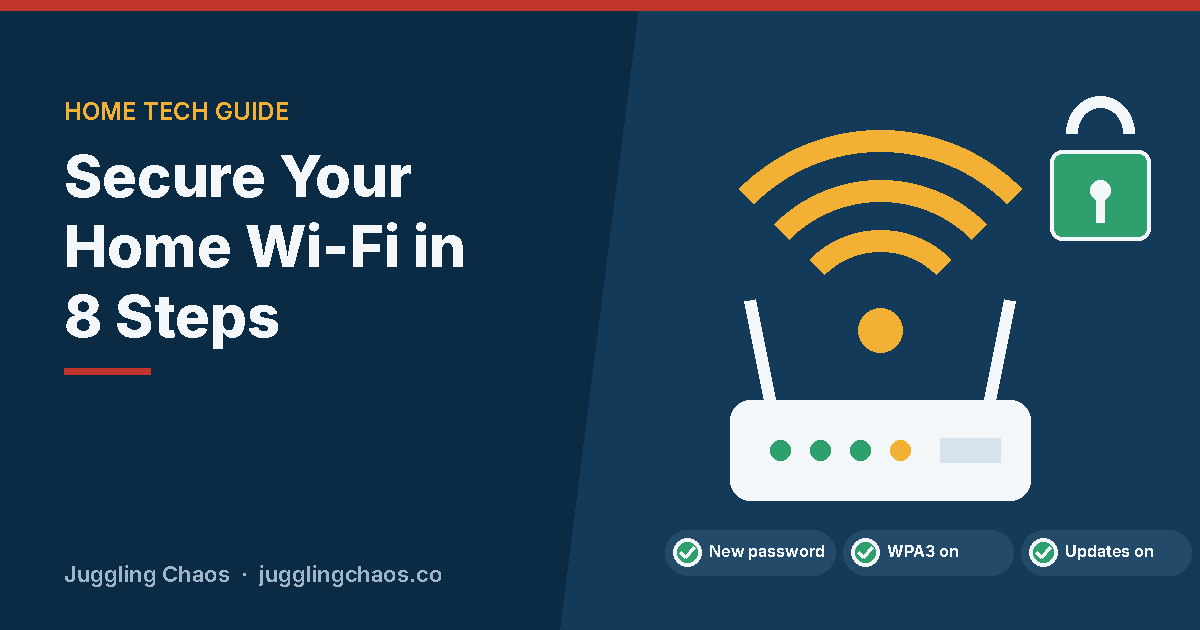
- Turn on WPA3 or WPA2 encryption. In the wireless or security settings, choose WPA3 Personal if it’s offered. The FTC says WPA3 is the newer and stronger option, and WPA2 Personal is still acceptable. CISA specifies WPA2 with AES if you use WPA2. The FCC notes that some routers come out of the box with encryption turned off, so check rather than assume.
- Set a strong Wi-Fi password. CISA suggests a passphrase of 5 to 7 unrelated words, at least 16 characters long. It’s easy to say out loud to a family member and hard to guess. Don’t reuse it anywhere else.
- Give the network a new name. The FTC advises against using your name, address or router brand. Something neutral like “MapleStreetLights” works fine.
- Update the firmware and turn on auto-update. Firmware is the router’s own software. CISA advises checking for updates regularly and turning on automatic updates if your router supports them. The FTC suggests registering your router with the maker so you hear about updates, and, if your internet company supplied it, asking whether they push updates automatically.
- Turn off WPS and remote management. WPS lets devices join with a button press instead of a password. Remote management lets settings be changed over the internet. The FTC also suggests turning off UPnP, a feature that lets devices find each other on the network. Each is convenient, but the FTC says they weaken security.
- Make sure the router’s firewall is on. The FTC recommends confirming the built-in firewall is turned on.
- Log out of the admin page when you’re done. The FTC lists this as a final step after any change.
Setting up a guest network for visitors and smart devices
Most routers can run a second, separate network. The FTC says a guest network with its own name and password means fewer people know your main password, and a guest’s device is less likely to spread problems to yours.
- Turn on the guest network in the router settings and give it its own long, unique password, as CISA advises.
- Share the guest password with visitors, babysitters, house cleaners and anyone else who doesn’t live with you.
- Put smart plugs, speakers, doorbells, thermostats and similar gadgets on the guest network if all they need is internet access. CISA explains this keeps them from seeing your other devices or reaching your router settings.
When to replace your router
Routers don’t last forever. A router that no longer gets updates from its maker can’t be patched when new problems are found. Consider a replacement if:
- It only offers WEP or WPA. The FTC says to update the router first and check again. If WPA2 or WPA3 still isn’t available, consider buying a new router.
- Your internet company supplied it and it’s old. CISA suggests asking your provider for an upgrade if your router only supports outdated security.
- The maker’s website shows no recent updates for your model. Look up the model number from the sticker on the maker’s support page to see whether it’s still supported.
When you set up a new router, go through the steps above again before connecting everything. The FTC also suggests disconnecting old devices you no longer use, since their security may be out of date.
Checking which devices are connected
The FTC says your router’s settings page can show a list of devices, often labeled “connected devices,” “wireless clients” or “DHCP clients.” Look at it a few times a year. Unplug or turn off a device you’re unsure about and see whether its entry goes away. That’s usually the easiest way to match names to gadgets.
The FCC also mentions an optional extra step: MAC address filtering, which lets only devices you list connect. It takes more upkeep, so it suits families who don’t add new devices often.
If you think someone is on your network
Most of the time, an unfamiliar entry turns out to be a forgotten tablet or a smart TV. If you’re still unsure, work through what applies:
- You see a device you can’t identify: change the Wi-Fi password. Every device gets disconnected, and only the ones you reconnect with the new password will be back on.
- You never changed the admin password: change it now, then check that the Wi-Fi password, network name and security settings are still what you chose.
- Settings changed that you didn’t change: change the admin password, update the firmware, and make sure WPS and remote management are off. If your internet company provided the router, call their support line using the number on your bill.
- A neighbor or former guest knows your main password: change it, and give future visitors the guest network instead.
- You also notice odd account activity: change the passwords on your important accounts and turn on two-step sign-in. See Hacked Email: What to Do Next.
Helping an older parent with home Wi-Fi
- Sit together and do the steps once, then write the network name, Wi-Fi password and admin password on a card kept near the router, out of sight of visitors.
- Set up the guest network so helpers and visiting relatives never need the main password.
- Turn on automatic updates, or put a reminder on your own calendar to check their router a few times a year.
- Agree that if anyone calls saying their router or internet “has a problem,” they hang up and call the number on their internet bill instead.
Checklist
- The router’s admin password has been changed from the default.
- Security is set to WPA3 Personal or WPA2 (AES), with a strong Wi-Fi passphrase.
- Firmware is up to date, and automatic updates are on if available.
- WPS and remote management are turned off, and the firewall is on.
- Visitors and smart devices use the guest network, and the connected devices list gets a look a few times a year.
FAQ
Do I need a new router?
Not always. If your router offers WPA2 or WPA3 and still gets updates from its maker, changing the settings in this guide is usually enough. If it only offers WEP or WPA, even after an update, the FTC suggests considering a new one. If your internet company supplied it, ask them about an upgrade first.
Should I hide my network name?
It isn’t one of the steps the FTC, CISA or FCC guidance recommends. Their advice is to change the default name and keep personal details out of it. Strong encryption and a strong password do the real work of keeping strangers out, and a hidden name can make it harder for your own family to connect.
Is public Wi-Fi safe?
The FTC says that because most websites now use encryption, public Wi-Fi is usually safe. Look for a lock symbol or “https” in the address bar. The FCC suggests asking staff which network is the real one, turning off automatic joining of nearby networks, and using your phone’s data plan for sensitive tasks. Encryption won’t protect you from a fake website.
How often should I check my router?
Once it’s set up, a quick look a few times a year is plenty: check for updates if they aren’t automatic, and review the list of connected devices. Do the full set of steps again whenever you get a new router or your internet company replaces one.
Related guides
- Phishing, Malware, and Ransomware: What’s the Difference?
- How to Read Security News and Alerts Without Panicking
- Hacked Email: What to Do Next
Sources
- Federal Trade Commission, “How To Secure Your Home Wi-Fi Network,” consumer.ftc.gov, accessed October 23, 2026.
- Federal Trade Commission, “Securing Your Internet-Connected Devices at Home,” consumer.ftc.gov, accessed October 23, 2026.
- Federal Trade Commission, “Are Public Wi-Fi Networks Safe? What You Need To Know,” consumer.ftc.gov, accessed October 23, 2026.
- Cybersecurity and Infrastructure Security Agency, “Module 5: Securing Your Home Wi-Fi,” cisa.gov, accessed October 23, 2026.
- Federal Communications Commission, “Wireless Connections and Bluetooth Security Tips,” fcc.gov, accessed October 23, 2026.
This is general information, not technical or legal advice. Router menus differ by maker, so check your router’s manual or ask your internet provider if a setting looks different.
Get one safety checklist a month
Juggling Chaos Monthly is free: one 15-minute checklist, one scam warning sign, and our newest guides. Sign up on the newsletter page.
Juggling Chaos will never ask for a password, payment, gift card, or verification code. Guides are general information, not legal or financial advice; see our Disclaimer and Terms and Editorial Policy.