Backup Codes for Two-Step Verification: What They Are and Where to Keep Them
When you turn on two-step verification, many accounts offer a short list of backup codes. Each code works once, in place of the code from your phone or text messages. Think of them as a spare key: you hope you never need one, but when your phone is lost, broken or replaced, they can be the fastest way back in.
This guide explains what backup codes are, how to get them for your most important accounts, where to keep them, and when to make a new set. It’s for anyone using two-step sign-in, and for family members who keep important papers for an older parent. The details were checked against Google’s help pages on November 2, 2026.
How backup codes work
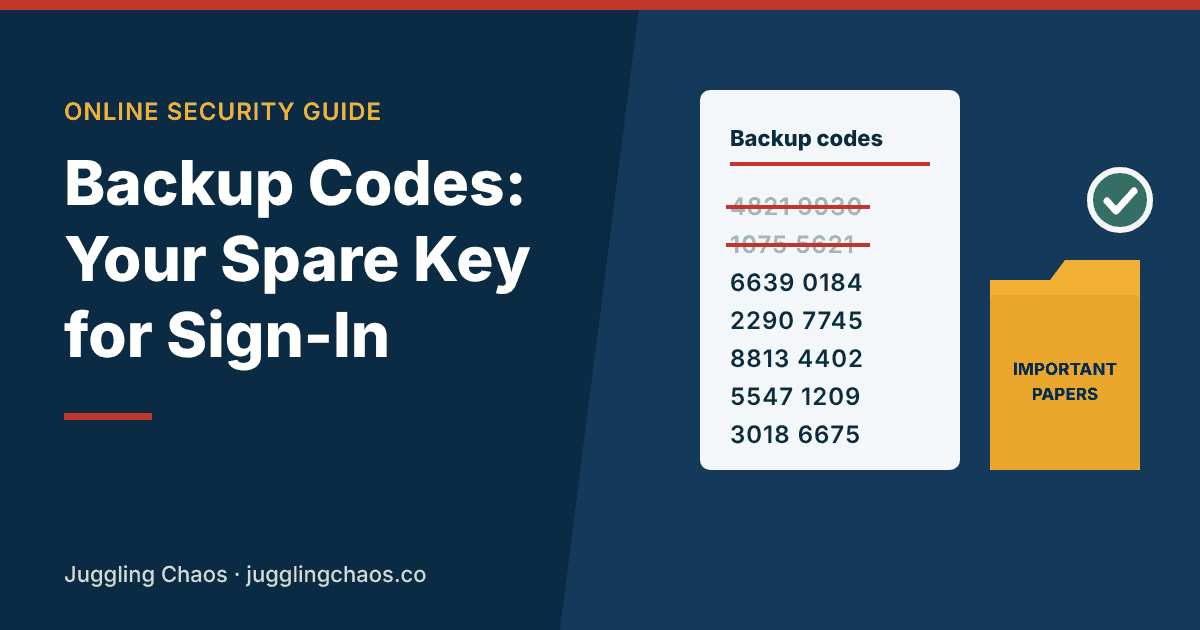
- Each code works once. Google says that after you use a backup code to sign in, that code becomes inactive.
- They come in a set. Google gives you 10 at a time, and you can get a new set whenever you want.
- A new set cancels the old one. When you make new codes, Google says the old set automatically stops working. Other sites usually work the same way.
- They’re as powerful as your phone. With your password, a backup code gets someone into your account. Guard them like a house key.
Which accounts to do first
- Your main email. It can reset most of your other passwords.
- Your Apple, Google or Microsoft account, since it controls your phone, photos and backups.
- Your password manager, if you use one. See our household password manager guide.
- Social media and shopping accounts with saved cards.
Banks often don’t offer printable codes and instead recover access by phone or at a branch. That’s fine. Write down their customer service number instead.
How to get Google backup codes
Google’s steps:
- Go to your Google Account and choose Security & sign-in.
- Under “How you sign in to Google,” choose 2-Step Verification. You may need to sign in.
- Under “Backup codes,” choose Continue, then Get backup codes.
- Choose Print codes or Download Codes.
To use one later, sign in, choose Try another way, then Enter one of your 8-digit backup codes. Google suggests marking each code as used.
Other accounts
Most sites put backup codes in the same place: the account’s security settings, in the two-step verification section. Look for words like “backup codes,” “recovery codes” or “one-time codes.” Some services, including Apple, use a different system, such as trusted devices or a recovery key, instead of a list of codes. If a site offers a recovery key, treat it the same way. Ente, for example, says its 24-word recovery key is separate from any website’s backup codes, and both should be kept somewhere you can reach without signing in.
Where to keep them
The best place is somewhere you can reach without the phone you might lose, and that a thief can’t easily reach.
- Printed, with your important papers. Google suggests storing them somewhere safe, like where you keep your passport or other important documents.
- In your password manager, in the notes for that account, as long as you can open the password manager without the codes themselves. Don’t store your password manager’s own backup codes inside it.
- A second copy with someone you trust, sealed, for an older parent’s main email account.
Avoid a photo in your camera roll, a note on the same phone, or an email to yourself. If your phone or email is the thing you’re locked out of, those copies go with it.
When to make a new set
- You’ve used most of them.
- You can’t find them.
- You think someone else saw them.
Google says that if you lost your codes or think they were stolen, you can make a new set, and the old ones stop working.
Scam warning
Google says it never asks for a backup code other than at sign-in. Nobody from a bank, tech company or “support desk” needs you to read one out. If someone asks, it’s a scam. Hang up. See Imposter Scams.
Helping an older parent
- Print codes for their main email together, and put them in the folder with their will, insurance or other papers.
- Write the account name and date on the sheet, not the password.
- If they want you to be able to help in an emergency, keep a sealed copy, and talk about it as part of digital legacy planning.
Checklist
- Backup codes saved for main email and your Apple, Google or Microsoft account.
- Stored on paper with important documents, or in a password manager you can open without them.
- No copies in your camera roll or inbox.
- Used codes crossed off, and a new set made when running low.
- Everyone in the family knows: never read a code to a caller.
FAQ
Do backup codes expire?
Generally they keep working until you use them or make a new set. Check each site’s help page, since rules vary.
Are backup codes the same as an app password?
No. An app password lets an older app, like some mail programs, connect to your account. A backup code is for you to sign in when your usual second step isn’t available.
I have an authenticator app with backup. Do I still need codes?
Yes, for your most important accounts. Backups can fail, and a printed code works even if every device is gone.
I downloaded my Google backup codes but can’t find them. Where are they?
Google says a downloaded copy is saved as a text file named Backup-codes- followed by your username, so you can search your computer for it. If you find it, consider printing it and deleting the file.
Related guides
- Lost Your Phone? How to Get Back Into Accounts That Use Two-Step Verification
- How to Move Your Authenticator App to a New Phone Without Getting Locked Out
- How to Turn On Two-Step Verification for Gmail, Outlook, Yahoo and iCloud Mail
- Authenticator Apps Reviewed
- A Password Manager for a Household
Sources
- Google Account Help, “Sign in with backup codes,” support.google.com, accessed November 2, 2026.
- Google Account Help, “Fix common issues with 2-Step Verification,” support.google.com, accessed November 2, 2026.
- Apple Support, “Two-factor authentication for Apple Account,” support.apple.com, accessed November 2, 2026.
- Ente, “Ente Auth FAQ,” ente.io, accessed November 2, 2026.
This is general information, not legal or financial advice. If you think someone got into one of your accounts, change that account’s password from a device you trust and report fraud at ReportFraud.ftc.gov.
Get one safety checklist a month
Juggling Chaos Monthly is free: one 15-minute checklist, one scam warning sign, and our newest guides. Sign up on the newsletter page.
Juggling Chaos will never ask for a password, payment, gift card, or verification code. Guides are general information, not legal or financial advice; see our Disclaimer and Terms and Editorial Policy.
Where this information comes from: This guide is built from official sources, such as U.S. government consumer agencies and the companies’ own help pages and policies, linked in the guide where they are used. I looked it over myself before publishing. I’m not a lawyer or a security professional; like many parents and caregivers, I’m learning as I go, so check the official source before a big decision. How these guides are made.