How to Turn On Two-Step Verification for Gmail, Outlook, Yahoo and iCloud Mail
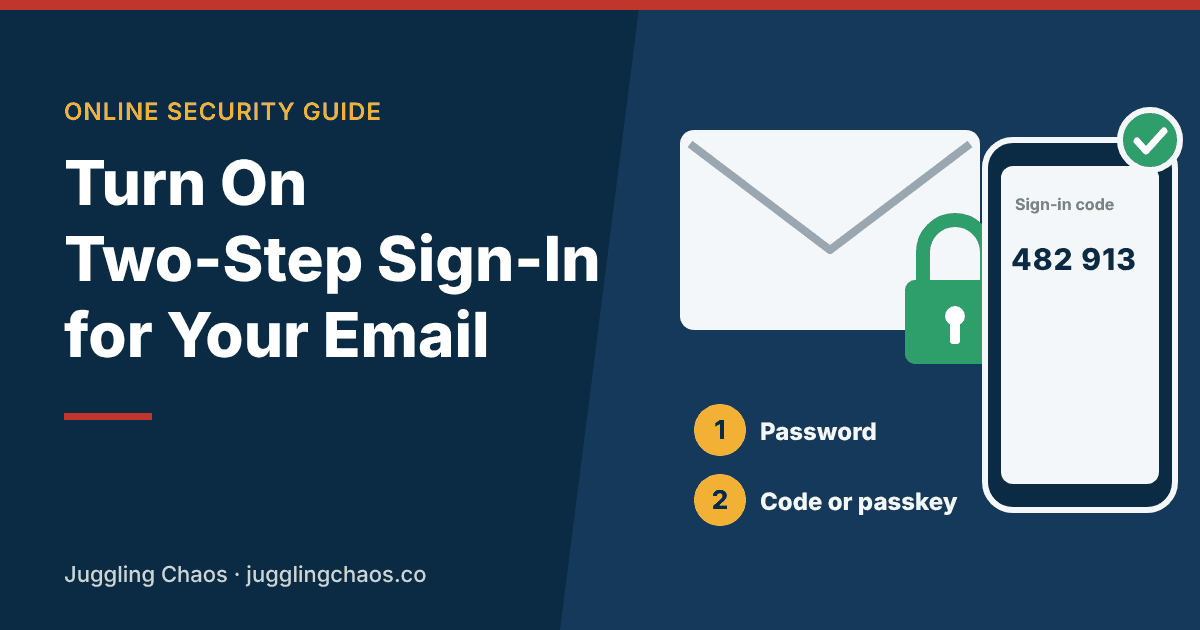
If someone gets into your email, they can reset the passwords on your bank, shopping and social media accounts by clicking “forgot password.” That makes email the first account to protect. Two-step verification adds a second check after your password, so a stolen password alone isn’t enough to get in.
This guide shows how to turn it on for the four biggest free email services, which second step to choose, and how to set it up so a lost phone doesn’t lock you out. It’s for anyone with a personal email account, and for family members setting this up with an older parent. The steps were checked against Google, Microsoft, Yahoo and Apple help pages on November 2, 2026. Menu names change, so if a label looks different, the linked help page has the current one.
Which second step to choose
- Passkey or security key: strongest. Google says passkeys and hardware security keys protect your account from phishing. See Passkeys Explained.
- App prompt or authenticator app: strong and easy. Google recommends its sign-in prompts, which it says can also help protect against SIM swaps. Authenticator apps make codes on your phone. See our authenticator app review.
- Text message code: better than nothing. Google notes that codes sent by text or call can be vulnerable to phone-number-based hacks. If it’s the only option you’re comfortable with, use it and upgrade later.
Gmail (Google Account)
- Open your Google Account and choose Security & sign-in.
- Under “How you sign in to Google,” choose Turn on 2-Step Verification.
- Follow the on-screen steps.
Google says that if you add a phone number for 2-Step Verification, it may take up to 7 days for Google to trust it, and a newly added Google Authenticator can take up to 7 days to show up as a sign-in option. Set things up before you need them. Then get your backup codes from the same page.
Outlook.com and Hotmail (Microsoft account)
- Sign in at account.microsoft.com/security.
- Choose Manage how I sign in.
- Under Additional security and Two-step verification, choose Turn on and follow the steps.
Microsoft gives an important warning: with two-step verification on, if you lose your contact method, your password alone won’t get you back in, and it can take 30 days to regain access. Microsoft strongly recommends having three pieces of security info on your account, such as a phone number, a backup email address and an authenticator app. Microsoft also says it is phasing out text messages as a sign-in and recovery method for personal accounts, so an authenticator app or passkey is the better long-term choice.
Yahoo Mail
- Sign in to the Yahoo Account Security page.
- Under “Ways of signing in,” choose 2-step verification.
- Pick a method: push notification to a Yahoo app, your phone number, an authenticator app or a security key.
- Follow the prompts.
Yahoo says that to see the authenticator app option, you need at least two recovery methods on your account. It also says that if you use a Yahoo Account Key, you’ll need to turn it off before turning on 2-step verification.
iCloud Mail (Apple Account)
Apple says two-factor authentication is the default for most Apple Accounts, so it may already be on. To check:
- On an iPhone or iPad, open Settings, tap your name, then Sign-In & Security. On a Mac, use System Settings.
- If two-factor authentication is off, turn it on and follow the instructions.
Apple sends codes to your trusted devices or a trusted phone number. Make sure your trusted phone number is current.
Don’t lock yourself out
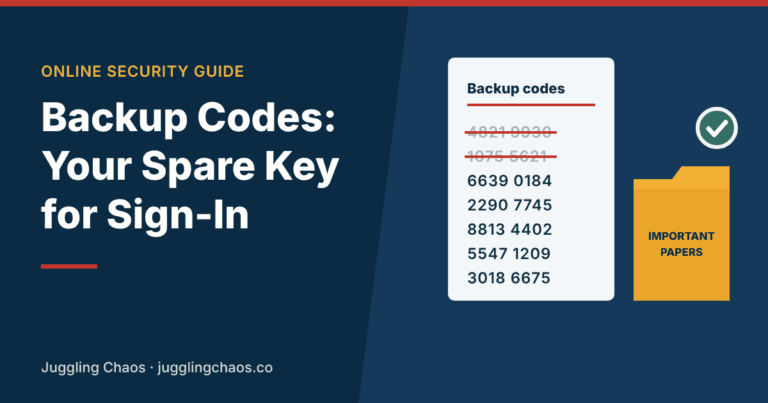
- Save backup codes where the account offers them. See Backup Codes for Two-Step Verification.
- Add a recovery email address and a recovery phone number, and keep them current.
- If you use an authenticator app, turn on its backup or sync.
- When you get a new phone, move your codes before you wipe the old one. See How to Move Your Authenticator App to a New Phone.
Never share a code
Google says never to share your verification codes, and that you won’t receive a call from Google asking you to verify a code. Scammers often pose as a bank or tech support and ask for “the code we just sent.” That code is the key to your account. Hang up.
Helping an older parent
- Start with their email only. Add the bank another day so it doesn’t feel overwhelming.
- If an app feels like too much, text codes are fine to start. You can upgrade later.
- Print their backup codes and keep them with their important papers.
- Add your number or email as a recovery option only if they agree, and tell them you did.
Checklist
- Two-step verification is on for every email account you use.
- The second step is a passkey, app prompt or authenticator app where possible.
- Backup codes are saved on paper.
- Recovery email and phone number are current.
- Everyone knows never to read a code to a caller.
FAQ
Will I have to enter a code every time I check my email?
Usually not. Most services ask for the second step when you sign in on a new device or browser, or now and then for security. Apple says you won’t be asked again on a device unless you sign out completely, erase it or change your password.
My email app stopped working after I turned this on. What do I do?
Some older mail apps can’t handle two-step sign-in. Google and Yahoo both offer app passwords for this. Signing in again in a current app often fixes it.
Is two-step verification the same as two-factor authentication?
For everyday purposes, yes. Companies use different names, such as two-step verification, 2-step verification, two-factor authentication or multi-factor authentication, for the same idea: a password plus a second check.
What if I don’t have a smartphone?
Text message codes work on a basic mobile phone, and some services, including Google, can read a code to you by voice call. Security keys don’t need a phone at all.
Related guides
- Account Takeover Prevention: How to Lock Down Your Accounts
- Authenticator Apps Reviewed
- Passkeys Explained: What They Are and How to Set Them Up
- Backup Codes for Two-Step Verification
- Lost Your Phone? How to Get Back Into Accounts That Use Two-Step Verification
Sources
- Google Account Help, “Turn on 2-Step Verification,” support.google.com, accessed November 2, 2026.
- Google Account Help, “Get verification codes with Google Authenticator,” support.google.com, accessed November 2, 2026.
- Microsoft Support, “How to use two-step verification with your Microsoft account,” support.microsoft.com, accessed November 2, 2026.
- Yahoo Help, “Add two-step verification for extra security,” help.yahoo.com, accessed November 2, 2026.
- Apple Support, “Two-factor authentication for Apple Account,” support.apple.com, accessed November 2, 2026.
This is general information, not legal or financial advice. If you think someone got into one of your accounts, change that account’s password from a device you trust and report fraud at ReportFraud.ftc.gov.
Get one safety checklist a month
Juggling Chaos Monthly is free: one 15-minute checklist, one scam warning sign, and our newest guides. Sign up on the newsletter page.
Juggling Chaos will never ask for a password, payment, gift card, or verification code. Guides are general information, not legal or financial advice; see our Disclaimer and Terms and Editorial Policy.
Where this information comes from: This guide is built from official sources, such as U.S. government consumer agencies and the companies’ own help pages and policies, linked in the guide where they are used. I looked it over myself before publishing. I’m not a lawyer or a security professional; like many parents and caregivers, I’m learning as I go, so check the official source before a big decision. How these guides are made.