Passkeys Explained: What They Are and How to Set Them Up
A passkey is a way to sign in to an account without typing a password. Instead, you unlock your phone or computer the same way you always do, with your fingerprint, your face or your screen lock PIN, and that proves it’s you. More and more email providers, banks, shopping sites and apps now offer passkeys, usually under a “Sign-in and security” setting.
This guide is for anyone who is tired of passwords, and for family members who help a parent or teen keep their accounts safe. It explains what passkeys are in plain terms, why they stop phishing, how to set up your first one, and what to do if you lose a device. It was checked against the FIDO Alliance, Apple Support and Google Account Help on October 29, 2026.
What a passkey is, in plain terms
When you create a passkey, your device makes a matched pair of digital keys for that one account. One key, the public key, is stored by the website. The other, the private key, stays on your device or in your password manager. When you sign in, your device uses the private key to answer a challenge from the site. Apple explains that the server never learns what the private key is, and no shared secret is sent.
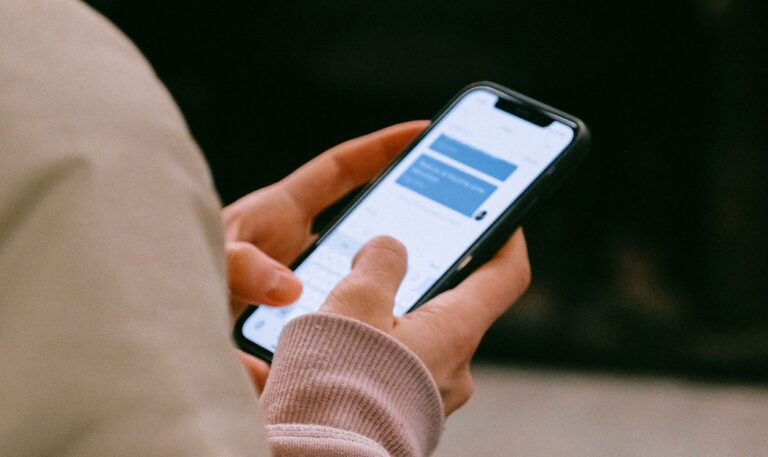
You never see or type any of this. What you see is a prompt that says something like “Use your passkey to sign in,” and you touch the fingerprint sensor, look at the camera or enter your phone’s PIN.
Google points out that your fingerprint or face data stays on your device and is never shared with Google. The website gets a yes-or-no answer, not your biometrics.
Why passkeys are safer than passwords
- They can’t be phished. A passkey is tied to the real website it was made for. If a fake look-alike site tries to get you to sign in, your passkey simply won’t work there. The FIDO Alliance describes passkeys as “always strong and phishing-resistant.”
- There’s nothing to steal in a data breach. The site stores only the public key, which is useless on its own. Apple notes the server doesn’t need to protect it because it isn’t secret.
- They can’t be reused or guessed. Every passkey is unique to one account, so a breach at one site can’t unlock another.
- They can’t be handed over by accident. Google says passkeys can’t be shared, copied, written down or accidentally given to someone else, which makes them much harder for a scammer on the phone to talk you out of.
Passkeys also count as strong two-step protection on their own. Google explains that if 2-Step Verification is on, a passkey skips the extra code step because it already confirms you have your device.
Synced passkeys and device-bound passkeys
The FIDO Alliance describes two kinds:
- Synced passkeys are stored in a password manager such as Apple Passwords and iCloud Keychain, Google Password Manager, or a third-party manager, and copied to your other devices through end-to-end encrypted sync. If you get a new phone, your passkeys come with you. This is what most people use.
- Device-bound passkeys never leave one device, such as a hardware security key. The FIDO Alliance says these offer the highest security, but you need a backup in case the key is lost.
How to set up your first passkey
- Make sure your phone or computer has a screen lock. A passkey is only as safe as the device’s lock. Google lists a screen lock as a requirement.
- Update your device and browser. Google’s requirements include iOS 16 or Android 9 or later on phones, Windows 10, macOS Ventura or ChromeOS 109 or later on computers, and a recent browser.
- Start with your most important account. Your main email comes first, because it can reset the passwords on everything else. For a Google Account, go to myaccount.google.com/signinoptions/passkeys and choose Create a passkey. For other accounts, look in Settings, Security, or Sign-in and security for “passkey.”
- Approve with your fingerprint, face or screen lock when your device asks.
- Sign out and sign back in once to see how it works, so it doesn’t surprise you later.
- Keep a backup way in. Leave your password, an authenticator app or saved backup codes in place as a fallback until you’re comfortable.
- Add passkeys to your bank, shopping and social media accounts as you come across the option.
Signing in on a computer that doesn’t have your passkey
Many sites let you sign in on a computer by scanning a QR code with your phone, then approving on the phone. Google notes that Bluetooth needs to be on for this. The phone must be near the computer, which is part of what keeps it safe.
If you lose your phone or get a new one
- Synced passkeys follow you. When you sign in to your Apple, Google or password manager account on a new device, your passkeys come back.
- Apple explains that passkeys in iCloud Keychain can be recovered even if all your devices are lost, using your Apple Account password, a code sent to your phone number and a previous device passcode. You can also set up an account recovery contact.
- Google says to sign in on another device and remove the passkey belonging to the lost device from your Google Account.
- Keep backup codes on paper for your email and bank, stored somewhere safe at home.
Things to watch out for
- Don’t create passkeys on a shared device. Google warns that anyone who can unlock a device with your passkey on it can get into your account, even after you sign out. Use your own phone, not a shared family tablet.
- Your screen lock matters more now. Use a PIN or passcode that family members and visitors don’t know.
- Look out for passkeys you didn’t add. Google may flag and disable a suspicious passkey and notify you. If you get a notice about a passkey you didn’t create, secure your account.
- Scammers still try other tricks. A passkey stops fake sign-in pages, but it can’t stop someone who talks you into sending money. The usual rules still apply.
Helping an older parent switch to passkeys
- Start with just their email account and do it together on their own phone.
- Show them the prompt they’ll see, and practice signing in once or twice.
- Check that their phone has a PIN or passcode that only they know, and write it down for their records.
- Save the account’s backup codes on paper with their other important papers.
- Remind them that nobody, including their bank or tech support, will ever need them to “read back” a code or approve a sign-in they didn’t start.
Checklist
- Every phone and computer in the house has a screen lock only its owner knows.
- Main email has a passkey, and backup codes are saved on paper.
- Bank and shopping accounts have passkeys where offered.
- No passkeys are created on shared family devices.
- Everyone knows to ignore sign-in prompts they didn’t start.
FAQ
Is a passkey the same as a password manager?
No, but they work together. A passkey is a type of sign-in. A password manager is where your passkeys and passwords are stored and synced. Apple Passwords, Google Password Manager and apps like Bitwarden and 1Password can all store passkeys.
Does the website get my fingerprint or face?
No. Your fingerprint or face only unlocks the passkey on your own device. Google says this biometric data stays on your device and is never shared with Google.
Do I still need my password?
Many sites keep your password as a backup. That’s fine while you get used to passkeys. Over time, some services let you remove the password or text message codes as a fallback, which closes the door phishers use most.
What if a site doesn’t offer passkeys yet?
Use a strong, unique password from a password manager plus an authenticator app for two-step sign-in. That’s still a big step up from a reused password.
Related guides
- Account Takeover Prevention: How to Lock Down Your Accounts
- Authenticator Apps Reviewed
- Apple Passwords and Google Password Manager Review
- A Password Manager for a Household
- SIM Swap Scams: How to Keep Someone From Taking Your Phone Number
Sources
- FIDO Alliance, “Passkeys,” fidoalliance.org, accessed October 29, 2026.
- Apple Support, “About the security of passkeys,” support.apple.com, accessed October 29, 2026.
- Google Account Help, “Sign in with a passkey instead of a password,” support.google.com, accessed October 29, 2026.
This is general information, not technical or legal advice. Steps and requirements can change; check your device maker’s or service’s help pages for the latest details.
Get one safety checklist a month
Juggling Chaos Monthly is free: one 15-minute checklist, one scam warning sign, and our newest guides. Sign up on the newsletter page.
Juggling Chaos will never ask for a password, payment, gift card, or verification code. Guides are general information, not legal or financial advice; see our Disclaimer and Terms and Editorial Policy.