Clicked a Phishing Link? What to Do Next, Step by Step
It happens to careful people every day. A text about a missed delivery, an email that looks like your bank, a “your account is locked” warning, and before you think twice you’ve tapped the link. Clicking a phishing link is not the end of the world, but what you do in the next few minutes matters. The right steps depend on what happened after the click.
This guide walks you through each situation, from “I only opened the page” to “I typed in my password” or “I let someone onto my computer.” It was checked against the Federal Trade Commission (FTC) on November 6, 2026.
First: don’t panic, and don’t go back
- Close the page or app. Don’t enter anything else, and don’t reply to the message.
- Don’t call a phone number shown on the page or in the message. If you need to reach the company, use the number on your card, statement or the app you already have.
- Work through the section below that matches what happened. If more than one fits, do all of them.
If you only clicked and didn’t type anything
Simply opening a link usually does less harm than people fear, especially on an up-to-date phone or computer. Still:
- Close the browser tab and clear it from your recent tabs.
- Make sure your device and browser are up to date. Updates fix the security holes that bad pages try to use.
- If anything started downloading, cancel it and delete the file from your Downloads folder.
- Run a scan with your security software. The FTC advises updating it first, then removing anything it flags.
- Report and delete the message (see “Report it” below).
If you entered a password
- Change that password right away, using the real app or a website you type in yourself. Make it long and unique.
- Change it anywhere else you used the same password. Scammers try stolen passwords on many sites. A password manager makes unique passwords easy.
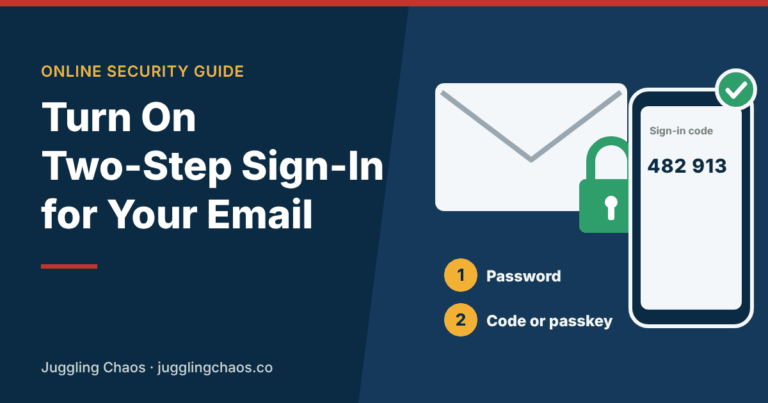
- Turn on two-step verification for that account. The FTC recommends it in case someone already got in. Our guide to turning on two-step verification for email covers the big providers.
- Sign out other sessions. Most big services have a “sign out of all devices” option in security settings. Check for devices, recovery phone numbers, forwarding rules or recovery emails you don’t recognize, and remove them.
- If it was your email password, treat it as urgent. Email is the key to resetting your other accounts. See Account Takeover Prevention.
If you entered card or bank details
- Call your bank or card issuer now, using the number on the back of your card. Say you entered your details on a phishing site and ask them to block or replace the card.
- Change your online banking password and turn on transaction alerts.
- Watch your statements for the next few months. For unauthorized card or bank charges, reporting quickly can limit what you’re responsible for.
If you gave your Social Security number or other ID details
- Go to IdentityTheft.gov. The FTC points people there for a personal recovery plan based on exactly what was exposed.
- Consider a free credit freeze at all three credit bureaus. It stops new accounts being opened in your name and doesn’t affect your credit score.
- Check your credit reports for free at AnnualCreditReport.com.
- Our identity theft recovery guide walks through the rest.
If you shared a verification code
A code texted or emailed to you is meant only for you. If you read it to someone or typed it into a page, they may have used it to sign in. Change the password for that account immediately, sign out other devices and check the security settings for anything new. If you can’t get in, use the company’s official account recovery page. Our hacked account recovery guide explains the process.
If you downloaded a file or installed an app
- Disconnect from the internet by turning off Wi-Fi or unplugging the network cable. This stops the program from talking to the scammer.
- Delete the file or uninstall the app.
- Run a full scan with up-to-date security software. The FTC’s malware guidance advises not logging in to banking or shopping accounts on that device until it’s clean.
- From a different, clean device, change your important passwords, starting with email and banking.
- If problems continue, such as pop-ups, a slow computer or settings changing on their own, get help from a trusted repair shop or the device maker’s official support.
If you let someone remotely control your computer
This often happens with fake “tech support” or “bank security” calls. Disconnect from the internet right away, uninstall any remote access app they had you install, and run a full scan. Then, from another device, change your passwords and call your bank. If you paid anything, follow the steps in our tech support scam guide.
Report it
- Phishing emails: forward them to the Anti-Phishing Working Group at reportphishing@apwg.org, and use your email app’s “Report phishing” or “Report spam” button.
- Phishing texts: forward them to 7726 (SPAM), then use your phone’s “Report junk” option.
- Impersonated company: many banks and big companies have a fraud or abuse address on their official website.
- The FTC: report at ReportFraud.ftc.gov, especially if you lost money or information.
How to spot the next one
- It’s urgent: your account is locked, a package can’t be delivered, a payment failed.
- It asks you to sign in, “verify” details or pay a small fee through a link.
- The web address is slightly off, uses an unusual ending, or is a link shortener.
- It arrives out of the blue and the greeting is generic.
The safest habit: never sign in from a link in a message. Open the app or type the website yourself. Passkeys help here too, because they only work on the real site. See Passkeys Explained.
Checklist
- I closed the page and didn’t enter anything else.
- I changed any password I typed in, and anywhere I reused it.
- Two-step verification is on for that account and my email.
- I called my bank if I shared card or bank details.
- I scanned my device and deleted anything I downloaded.
- I reported the message and deleted it.
FAQ
Can my phone get hacked just by clicking a link?
It’s uncommon on a phone that’s kept up to date, but it isn’t impossible. Most phishing works by getting you to type something in or install something. Keep your phone updated and follow the steps above to be safe.
Should I reset my phone or computer?
Usually not if you only clicked. If you installed something you don’t recognize, or the device acts strangely after a scan, a full reset after backing up your photos and files may be the cleanest fix. See how to wipe a phone or computer.
I clicked a link in a text from my “bank.” How do I know if my account is OK?
Call the number on the back of your card or open your bank’s official app and check recent activity. The bank can tell you if anything looks wrong.
Do I need to pay for identity theft protection?
Not necessarily. A credit freeze, account alerts and checking your free credit reports cover the most important steps at no cost.
Related guides
- Phishing Text Messages: Examples, Red Flags and What to Do
- Phishing, Malware, and Ransomware: What’s the Difference?
- Account Takeover Prevention: How to Lock Down Your Accounts
- What to Do After a Data Breach
- Get Help Now After a Scam or Hack
Sources
- Federal Trade Commission, “How To Recognize and Avoid Phishing Scams,” consumer.ftc.gov, accessed November 6, 2026.
- Federal Trade Commission, “Malware: How To Protect Against, Detect, and Remove It,” consumer.ftc.gov, accessed November 6, 2026.
- Federal Trade Commission, “How to Recognize and Report Spam Text Messages,” consumer.ftc.gov, accessed November 6, 2026.
- Federal Trade Commission, IdentityTheft.gov, identitytheft.gov, accessed November 6, 2026.
This is general information, not legal or technical advice. If you lost money, contact your bank right away and report the scam at ReportFraud.ftc.gov.
Get one safety checklist a month
Juggling Chaos Monthly is free: one 15-minute checklist, one scam warning sign, and our newest guides. Sign up on the newsletter page.
Juggling Chaos will never ask for a password, payment, gift card, or verification code. Guides are general information, not legal or financial advice; see our Disclaimer and Terms and Editorial Policy.
Where this information comes from: This guide is built from official sources, such as U.S. government consumer agencies and the companies’ own help pages and policies, linked in the guide where they are used. I looked it over myself before publishing. I’m not a lawyer or a security professional; like many parents and caregivers, I’m learning as I go, so check the official source before a big decision. How these guides are made.