Lost Your Phone? How to Get Back Into Accounts That Use Two-Step Verification
Two-step verification protects your accounts with a second check after your password, often a code from your phone. So when that phone is lost, stolen or broken, it can feel like you’re locked out of everything at once. In most cases you aren’t. Accounts are built with backup ways in, and even without them there’s usually a recovery process. It just takes longer.
This guide covers what to do in the first hour, how to get back into the biggest accounts, and how to make the next lost phone a minor problem. It’s for anyone who uses sign-in codes, and for family members who help an older parent with their phone. The steps were checked against Google, Apple and Microsoft help pages on November 2, 2026.
First, if the phone was lost or stolen
- Lock or locate the phone. Use Find My (iPhone) or Find My Device (Android) from another device to lock it or show a message.
- Call your carrier to suspend the line, and ask about moving your number to a new phone or SIM. Google’s help page lists getting a new phone from your carrier as one way back in, since codes sent by text follow your number.
- Change your email password from a device you trust. Google recommends signing out of the lost phone and changing your password. Email comes first because it can reset most of your other accounts.
- Watch for warning signs such as password-reset emails you didn’t ask for, and alerts about a SIM change. See SIM Swap Scams for what those alerts mean.
Ways back in, from quickest to slowest
- Another signed-in device. A tablet, computer or second phone where you’re already signed in can often approve the sign-in or let you change your settings.
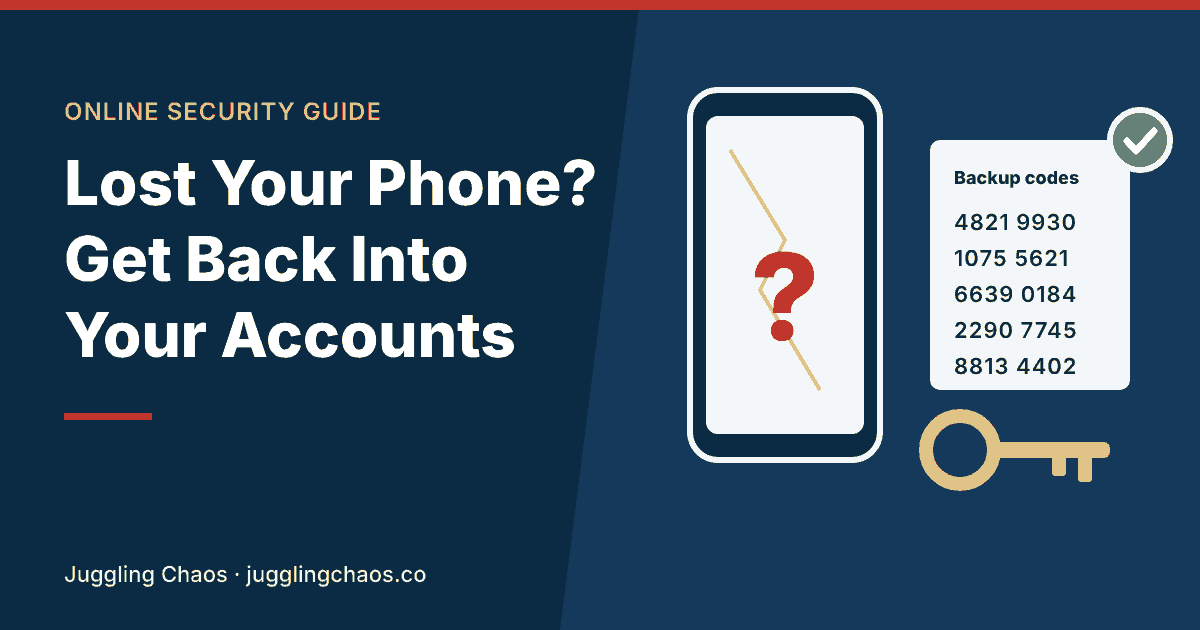
- A backup code. The one-time codes many accounts offer when you turn on two-step verification. See Backup Codes for Two-Step Verification.
- A backup phone number or email you added to the account.
- A synced authenticator app. If your authenticator app backed up or synced, install it on a new phone and sign in or restore. See How to Move Your Authenticator App to a New Phone.
- A passkey or security key on another device.
- Account recovery. The slow but official route when nothing else works.
Google Account
Google’s help page says that if you’ve lost your main phone, you can still verify it’s you with another phone signed in to your Google Account, another phone number you added for 2-Step Verification, a saved backup code, a security key, or a passkey created on another device. A computer where you checked “Don’t ask again on this computer” may also let you in without the second step.
If none of those work, use Google’s account recovery page. Google says that because of the extra protection, recovery can take 3 to 5 business days. Its tips help: use a device and location where you usually sign in, answer every question you can, and take your best guess on old passwords rather than skipping.
Apple Account
Apple’s two-factor authentication sends codes to your trusted devices or your trusted phone number. If you still have another Apple device signed in, such as an iPad or Mac, you can use it to get a code or change your password. If you have your phone number back on a new SIM, a code can go there by text.
If you can’t reset your password, Apple offers account recovery. Apple says it can take several days or longer, that Apple Support can’t shorten the wait, and that you’ll get a confirmation email within 72 hours with the date to expect. While you wait, don’t submit another request. Apple also says that in some cases using an Apple device that’s signed in to your account cancels the request, so follow the instructions in that email.
Microsoft account
Microsoft warns that with two-step verification on, your password alone won’t get you back in if you lose your contact method, and that it can take 30 days to regain access. That’s why Microsoft recommends having three pieces of security info on your account, such as a phone number, a backup email address and an authenticator app. If you still have one of those, use it to sign in, then update the rest.
Banks and other accounts
Banks, credit card companies and retirement accounts usually handle a lost phone by phone call or at a branch. Call the number on your card or statement, not a number from a text or search ad. Expect to answer identity questions. For other sites, look for links like “Try another way,” “Can’t use your phone?” or “Lost your device?” on the sign-in page.
Watch out for “recovery” scams
Being locked out makes people easy targets. Google says it never asks for your password or verification codes over email, phone call or message. Treat any caller or ad offering to “unlock” your account for a fee as a scam, and only use recovery pages you reach by typing the company’s address yourself.
Make the next lost phone a minor problem
- Save backup codes for your email and bank, and keep them on paper at home.
- Add a second way in to each important account, like a backup email or a second phone number.
- Turn on backup or sync in your authenticator app.
- Set up a passkey on a second device, such as a tablet or computer. See Passkeys Explained.
Helping an older parent who lost their phone
- Start with their email account, then their bank. Those two unlock most of the rest.
- Use their home computer or tablet if they have one, since a familiar device helps with recovery.
- Once they’re back in, add a backup phone number (yours, with their agreement) or a backup email, and print fresh backup codes.
Checklist
- Phone locked or located, and carrier called.
- Email password changed from a trusted device.
- Back into email, bank and other key accounts.
- Old phone removed from each account’s list of devices.
- Fresh backup codes saved, and a second way in added.
FAQ
Can I turn off two-step verification without my phone?
Usually not until you’ve signed in another way. That’s the point of it. Use a backup code, another device or the account recovery process first, then change your settings.
Why does account recovery take so long?
The wait protects you. If a thief tried to recover your account, the delay gives you time to notice and stop it. Apple says its wait period is fixed and support staff can’t shorten it.
My phone is broken but I still have it. Can a repair shop get my codes back?
Sometimes, if the phone can be powered on again. Don’t count on it. Work through the backup options above while you wait.
Should I stop using two-step verification so this doesn’t happen again?
No. A lost phone is a hassle you can recover from. A stolen account can cost much more. Adding backup options solves the lockout problem without giving up the protection.
Related guides
- Backup Codes for Two-Step Verification: What They Are and Where to Keep Them
- How to Move Your Authenticator App to a New Phone Without Getting Locked Out
- Account Takeover Prevention: How to Lock Down Your Accounts
- SIM Swap Scams: How to Keep Someone From Taking Your Phone Number
Sources
- Google Account Help, “Fix common issues with 2-Step Verification,” support.google.com, accessed November 2, 2026.
- Google Account Help, “Tips to complete account recovery steps,” support.google.com, accessed November 2, 2026.
- Apple Support, “Two-factor authentication for Apple Account,” support.apple.com, accessed November 2, 2026.
- Apple Support, “What to expect during account recovery,” support.apple.com, accessed November 2, 2026.
- Microsoft Support, “How to use two-step verification with your Microsoft account,” support.microsoft.com, accessed November 2, 2026.
This is general information, not legal or financial advice. If you think someone got into one of your accounts, change that account’s password from a device you trust and report fraud at ReportFraud.ftc.gov.
Get one safety checklist a month
Juggling Chaos Monthly is free: one 15-minute checklist, one scam warning sign, and our newest guides. Sign up on the newsletter page.
Juggling Chaos will never ask for a password, payment, gift card, or verification code. Guides are general information, not legal or financial advice; see our Disclaimer and Terms and Editorial Policy.
Where this information comes from: This guide is built from official sources, such as U.S. government consumer agencies and the companies’ own help pages and policies, linked in the guide where they are used. I looked it over myself before publishing. I’m not a lawyer or a security professional; like many parents and caregivers, I’m learning as I go, so check the official source before a big decision. How these guides are made.